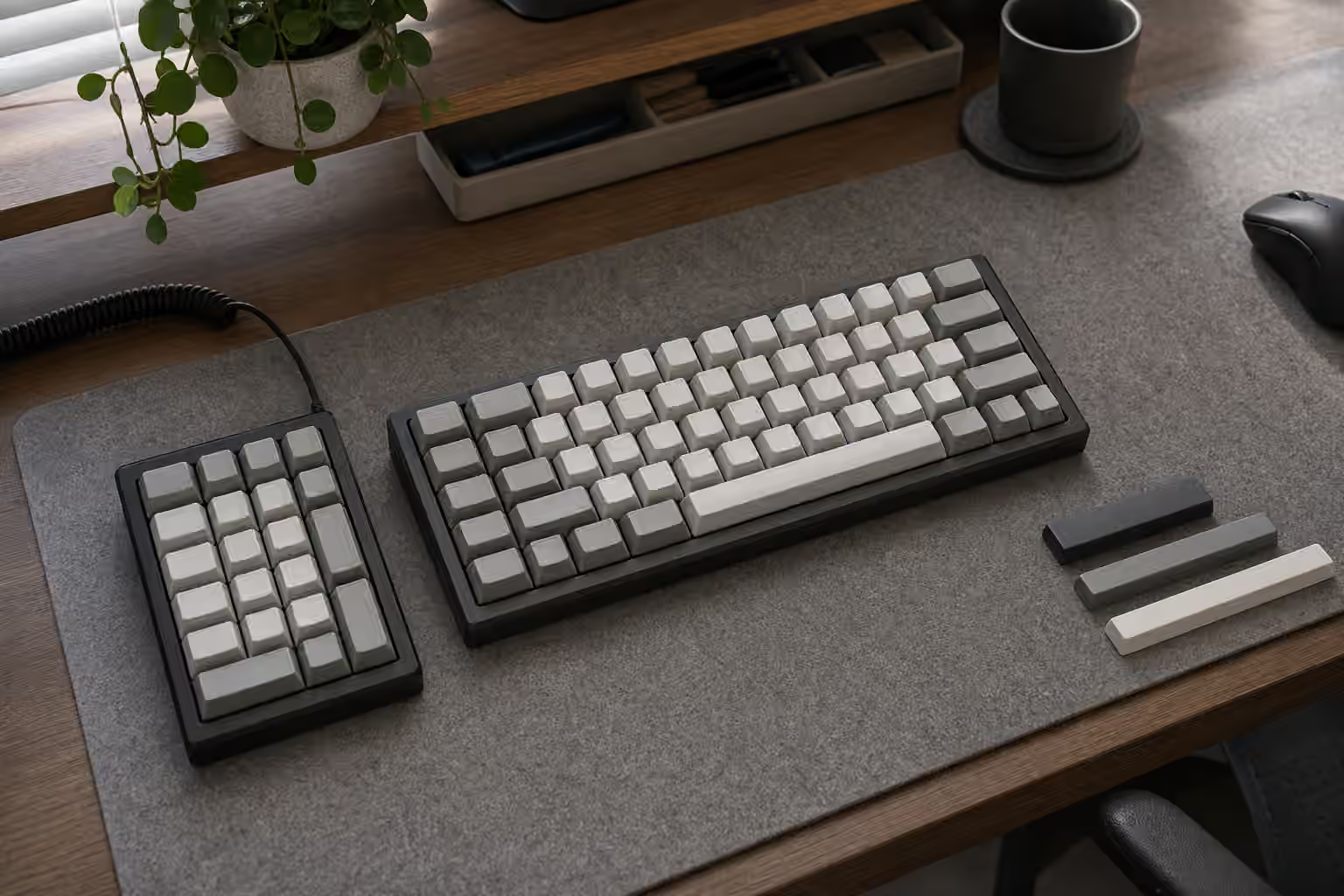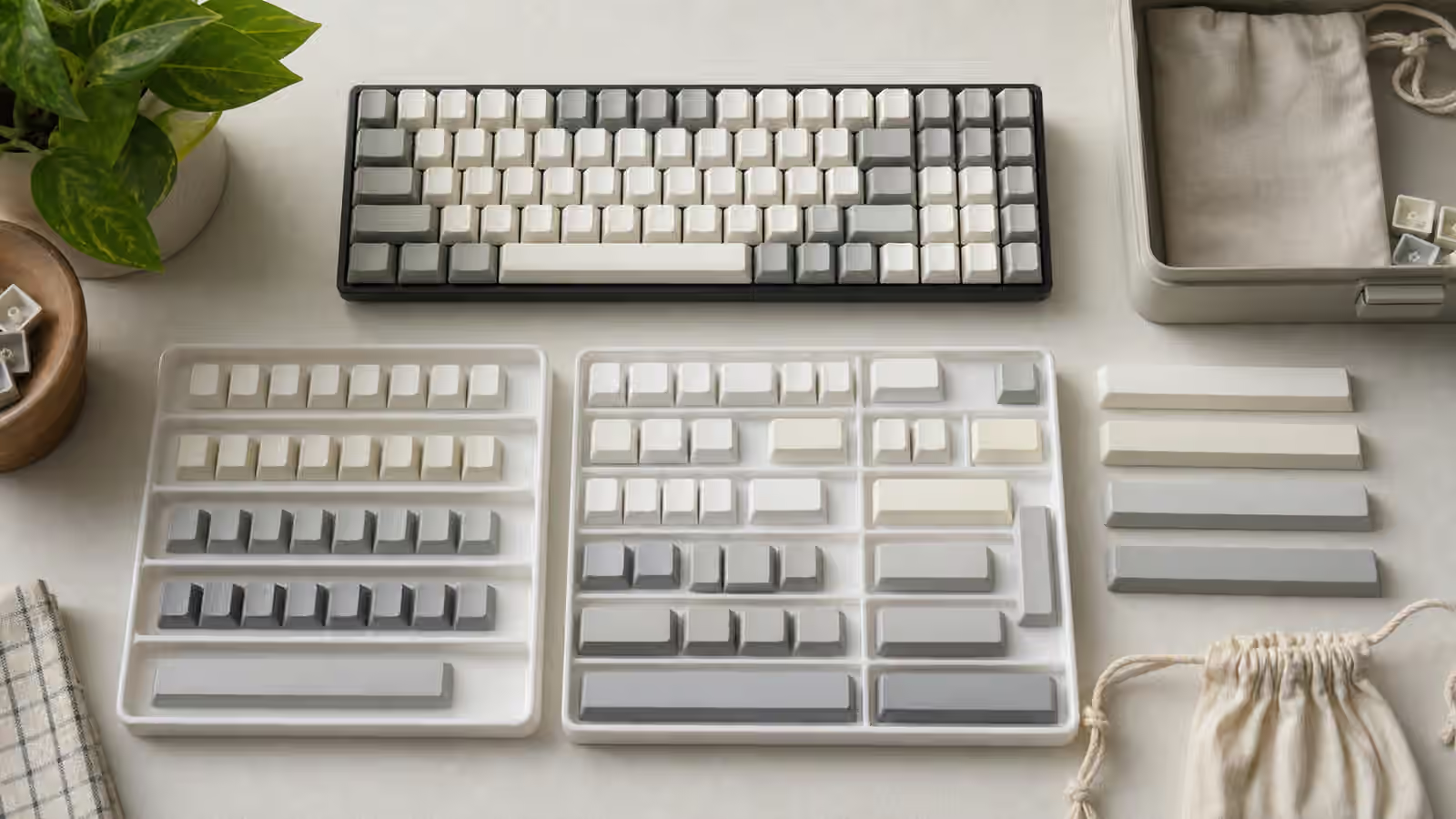
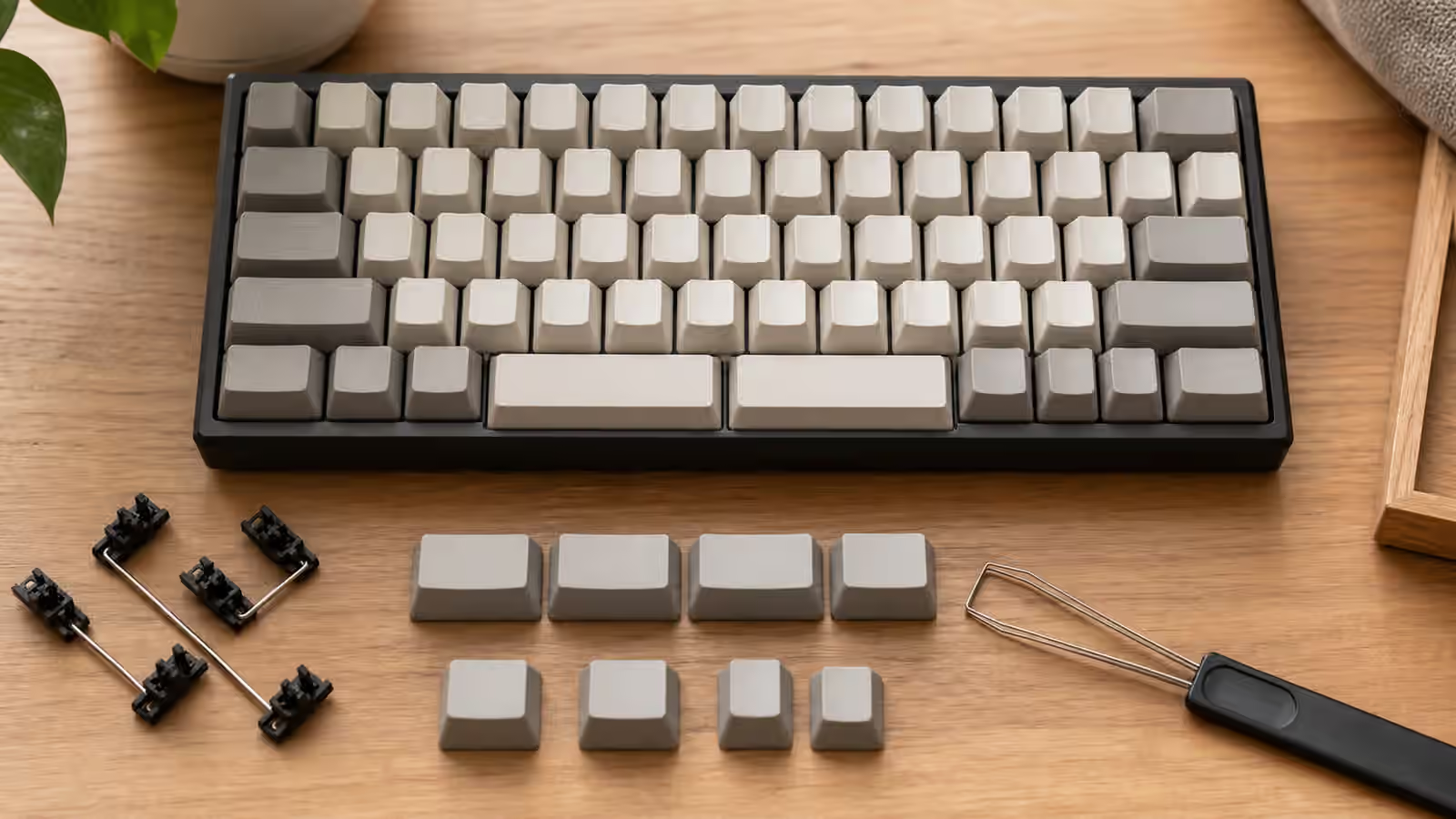
The spacebar is usually treated as one large key because that is what most keyboards inherited. It sits under both thumbs, occupies a wide part of the bottom row, and performs one job. Split spacebars challenge that habit. Instead of one long bar, the keyboard uses two or more smaller keys near the thumbs. One can stay Space, while the others become Backspace, Enter, Shift, a layer key, a language switch, a macro trigger, or another command your thumbs can reach without leaving the home position.
This idea sits between compact keyboard design and ergonomic layout design. The Compact Keyboard Layers guide explains why smaller boards need thoughtful layers. The Split Keyboards and Ergonomic Layouts guide explains why thumb clusters matter on more radical boards. Split spacebars bring part of that thinking to familiar rectangles. They keep the keyboard close to normal while giving the thumbs more useful work.
Why the thumb is interesting
Thumbs are strong and already involved in typing, but most standard keyboards give them a narrow role. They press Space, sometimes Command or Alt, and not much else. Meanwhile the little fingers handle Shift, Control, Backspace, Enter, punctuation, and layer keys. That load can be awkward on compact boards, especially when the bottom row is already crowded by modifiers. A split spacebar lets one thumb keep Space while the other helps with a frequent command.
The most common improvement is Backspace under a thumb. It can reduce the reach to the top-right corner and make corrections feel less disruptive. Enter under a thumb can also work well for programming, chat, or spreadsheet use. A layer key under a thumb is powerful because it lets the fingers stay on letters while the layer exposes arrows, numbers, symbols, or navigation. The Keyboard Macros and Shortcuts guide touches the same principle: the best shortcut is not the cleverest one, but the one your hands can perform calmly.
The risk is overloading the thumb with too much responsibility. A key that is easy to reach is tempting, so every missing function starts looking like a thumb candidate. That can create accidental layer holds, missed spaces, and hesitation during ordinary typing. Split spacebars work best when each thumb key has a clear job and the most frequent action still feels automatic.
Space is not always centered
Many people assume the largest middle key must remain Space, but actual thumb use is personal. Some typists press Space almost exclusively with the right thumb. Others use the left thumb. Some alternate without noticing. Before choosing a split layout, watch which thumb currently presses Space during normal writing. Do not perform for the test. Type a few paragraphs and notice afterward. Your habit is the starting point.
If one thumb already owns Space, the other thumb can take a new key with less disruption. If you alternate thumbs, a split spacebar may require more adjustment because either side might now do something different. Some firmware layouts solve this by making both main thumb keys Space when tapped, while one or both become layer keys when held. That can be elegant, but it depends on careful hold-tap timing. The Home Row Mods and Hold-Tap Timing guide is relevant because the same timing tension appears under the thumbs.
There is no universal best assignment. A writer may love thumb Backspace. A programmer may prefer thumb Enter or symbols. A gamer may want the main Space behavior preserved and avoid clever holds that interfere with movement. A multilingual typist may reserve a thumb key for input switching. The right layout is the one that removes a real reach without making ordinary space entry uncertain.
Keycap compatibility is the hidden cost
Split spacebars are physically specific. A normal 6.25u or 7u spacebar will not help if the board uses a 2.25u and 2.75u pair, a 3u pair, or a cluster of smaller keys. The stabilizer stems must line up with the keycap, and the profile must match the bottom row. A keycap set can cover standard boards beautifully and still leave a split-spacebar layout unfinished.
This is why the Keycap Compatibility guide matters before buying a split-spacebar board. Look for exact spacebar sizes in the kit diagram. Do not rely on photos of a display board unless the photo shows the same layout you are building. Some sets include small spacebars in the base kit. Others sell a separate spacebar kit. Some never support the layout at all. Blank keys can solve legends, but they cannot solve wrong stabilizer spacing.
Profile complicates the decision. A small convex spacebar can feel different from a normal modifier key of the same width. Some people prefer convex thumb keys because the curved top catches the thumb comfortably. Others are fine with normal flat or sculpted keys. If you use a sculpted profile, make sure the thumb keys belong to the correct row. A physically fitting key from the wrong row can feel like a speed bump under the thumb.
Stabilizers change the feel
Small thumb keys may or may not need stabilizers depending on their width. A 1u or 1.25u key usually uses only the switch. A 2u or larger key often uses a stabilizer, and a split spacebar made from long keys can inherit many of the same tuning issues as a normal spacebar. Rattle, tick, sluggish return, and cap warp can all appear on thumb keys. The Complete Stabilizer Guide explains the general tuning process, while Spacebar Tuning is useful for longer bars.
The feel mismatch matters because thumb keys are used constantly. A scratchy or rattly thumb Backspace can become more annoying than a rattly Shift key because it interrupts correction every time. If a split spacebar layout feels worse than expected, do not blame the idea immediately. Check whether the stabilizers are clipped in properly, the wire is seated, the cap is straight, and the switch is the right weight for thumb use.
Spring weight is worth considering. A heavy switch under a thumb layer key can prevent accidental activation, but it may tire the thumb if used constantly. A light switch can make Space feel quick, but it may trigger when your thumb rests on it. Some builders use different switches under thumb keys for this reason. That can work well, but test it carefully so the board does not feel patched together.
Firmware makes or breaks the layout
A split spacebar is only as useful as its mapping. If the keyboard firmware cannot assign each thumb key independently, the physical layout loses much of its value. Before buying a board, confirm that the exact model supports the remaps you want. VIA, QMK, Vial, ZMK, and manufacturer software all differ in how they handle layers, tap-hold behavior, combos, and wireless constraints.
Start with simple assignments. Space on the dominant thumb, Backspace or Enter on the other, and one layer key if needed. Use that for several days before adding more cleverness. If you add a tap-hold behavior, tune it in normal typing, not in a tester page. A hold threshold that seems fine during deliberate taps may misfire in fast prose. The goal is for the thumb key to disappear into habit.
Back up the layout if the software allows it. Compact and thumb-heavy keyboards can become frustrating if a firmware reset erases the arrangement and you have no record. The QMK and VIA Firmware guide covers the broader habit of treating a layout as part of the keyboard, not as an afterthought.
Learning the layout without fighting it
Do not judge a split spacebar in the first ten minutes. Your thumbs have years of habit behind them. Start with one changed key and leave the rest familiar. If Backspace moves to the thumb, keep the old Backspace available for a while. If a layer moves under the thumb, practice the layer with common actions such as arrows or Delete rather than designing an entire symbolic universe immediately.
Mistakes are useful feedback. If you keep sending Backspace when you wanted Space, the key sizes, thumb assignment, or hold timing may be wrong. If you forget the thumb key exists, the old reach may not have bothered you enough to justify the change. If the new key feels good during writing but bad during games, create a separate layer or profile rather than forcing one layout to serve every context.
Split spacebars are not a purity test. They are a practical way to give the thumbs more useful work while keeping the board familiar. For some hands, the change is immediate comfort. For others, a normal spacebar is calmer. The best reason to choose the layout is not novelty. It is a specific reach you want to remove, a specific layer you want to hold comfortably, or a specific compact board that becomes easier to live with when the thumbs stop wasting all that space on one oversized key.