
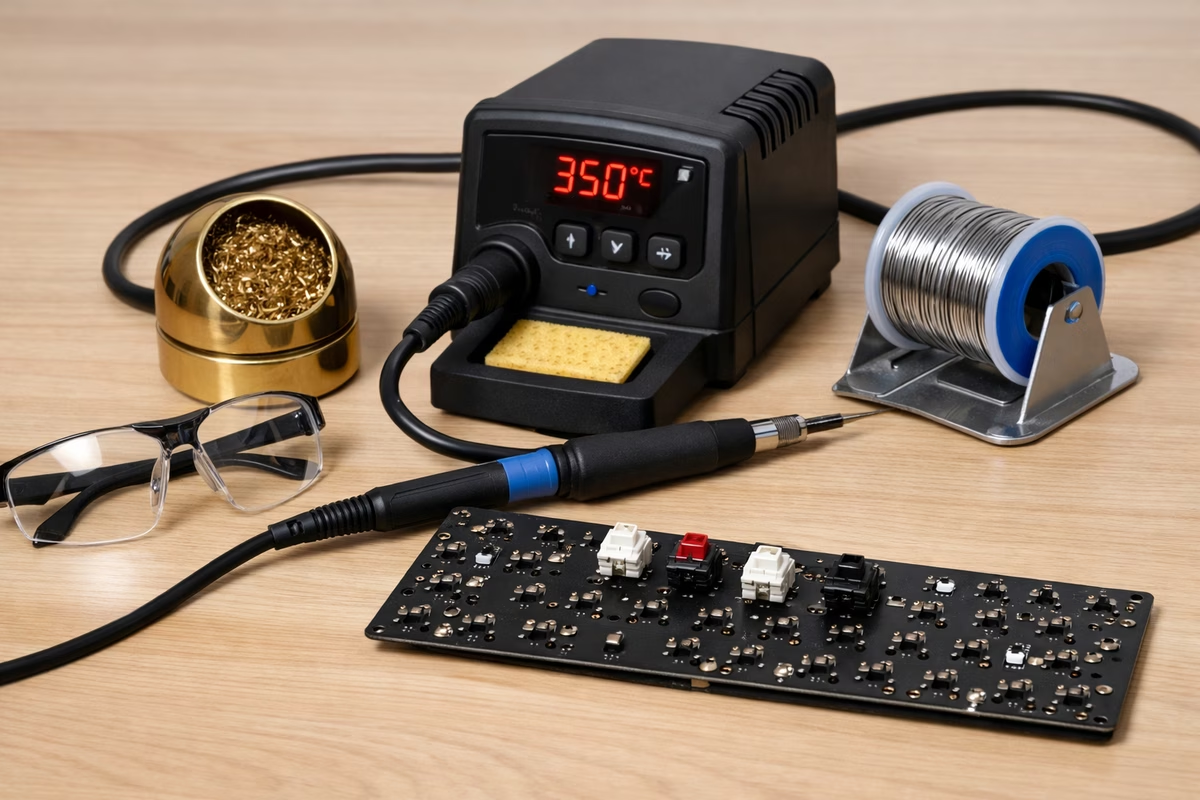
Keyboard Soldering Guide
Soldering looks intimidating until you do it once. In practice it’s a small, repeatable motion: heat the metal, introduce solder to the heated joint, then stop touching it and let it cool. When it goes well, the joint is both electrically reliable and mechanically strong. When it goes poorly, it’s usually for predictable reasons—insufficient heat, too much solder, or moving the joint while it cools.
This guide is written for keyboard builders, not electronics engineers. You’ll learn what matters for PCBs and switches, how to set up a safe workspace, how to get consistent joints, and how to fix mistakes without turning your PCB into a crime scene.
Why Learn Soldering?
Custom Keyboards
Many premium keyboards require soldering, either because the PCB is designed for it or because the build expects you to commit to a layout. Soldering also unlocks the full switch universe (including some pins and footprints that are less friendly to hot-swap sockets).
Repairs
Soldering is also a repair superpower. A dead switch, a ripped USB port, or a damaged socket isn’t automatically “throw it away” when you can rework the joint and replace a part.
Modifications
Finally, it’s how modders turn ideas into reality: adding components, adjusting LEDs, stabilizing questionable connections, and building layouts that aren’t available off the shelf.
Soldering vs. Hot-Swap
Hot-Swap Keyboards
Hot-swap is the easiest on-ramp. You can swap switches without tools beyond a puller, experiment freely, and fix mistakes instantly. The trade-offs are mostly long-term: sockets can wear out, the connection can be slightly less stable, and you’re limited to what’s compatible with the socket footprint.
Soldered Keyboards
Soldered builds feel “committed” in the best way. The connection is stable, there are no sockets to fail, and you can use essentially any MX-compatible switch that fits the PCB. The cost is that switch changes require desoldering, and mistakes are harder—but still fixable if you learn the basics.
Verdict: Beginners should start with hot-swap if they want the fastest success. Enthusiasts should learn soldering if they want ultimate flexibility and the ability to repair or rework boards long-term. Both approaches are valid; soldering is a skill, not a moral identity.
Soldering Tools and Materials
Essential Tools ($50-100)
If you buy one good thing, make it the iron. A temperature-controlled iron (roughly 40–60W) makes learning dramatically easier because it keeps the joint hot enough without forcing you to hover and overcook the PCB. Popular picks in the keyboard world include the Hakko FX‑888D, TS100/TS80P, and Pinecil, but any stable, adjustable station is better than a cheap fixed-temp wand.
For solder, 63/37 or 60/40 tin-lead is the easiest to learn with because it flows predictably and solidifies cleanly. A diameter around 0.6–1.0mm is comfortable for switch pins. Lead-free works, but it’s fussier: higher temperatures, narrower “good joint” window, and more beginner frustration.
You’ll also want a solder sucker (desoldering pump) for mistakes and rework. Even if you think you won’t need it, you will—and having it on the desk turns panic into a two-minute fix.
Add flux. Flux isn’t “cheating”; it’s how you get clean flow without fighting oxidation. Rosin paste or liquid is fine and inexpensive.
Tweezers round out the essentials: they help straighten pins, place parts, and generally keep your fingers away from hot metal.
Optional Tools ($50-200)
Optional tools are about speed and comfort. A good desoldering tool (manual or powered) makes switch swaps far less annoying, and tip-cleaning gear helps keep joints consistent.
If you plan to solder more than one board, a stable station, a brass sponge (or similar tip cleaner), and a simple multimeter are the upgrades that pay for themselves in reduced frustration.
Safety Equipment
Treat safety as part of the build. Work near a window or use a fume extractor so you’re not inhaling flux fumes, wear eye protection (hot solder occasionally spits), and use a heat-resistant mat to protect the desk and keep your work stable.
Soldering Basics
How Soldering Works
Soldering is just controlled heat and timing. Touch the iron so it heats both the pad and the pin, then feed solder into the joint (not onto the iron tip). The solder melts because the joint is hot, flows where heat is, and forms a smooth fillet that bonds pad to pin. Then you remove solder, remove the iron, and let the joint cool without movement.
If you remember one principle, make it this: heat the joint, not the solder. When the joint is hot, solder behaves; when it isn’t, you get blobs, dull joints, and intermittent keys.
Good vs. Bad Solder Joints
A good joint looks like it belongs there: smooth, slightly concave, and evenly bonded to both pad and pin. Cold joints look dull or grainy and often form blobs that don’t “wet” the metal properly; they’re the common cause of keys that work sometimes and fail later. Too much solder creates large blobs and increases the risk of bridges (shorts). Too little solder leaves the pin under-bonded, which can crack with stress.
Step-by-Step: Soldering a Keyboard
Step 1: Gather Materials and Prepare the Workspace
Before the iron gets hot, make sure the whole build is on the desk: PCB, switches, plate if the kit uses one, stabilizers, solder, flux, and a way to fix mistakes. A solder sucker or wick is not optional in spirit, even if it feels optional while shopping. Everyone makes at least one joint they want to redo.
Set up on a heat-resistant mat with strong lighting and ventilation. Keep the iron stand, solder, flux, tip cleaner, and desoldering tool close enough that you are not reaching across the PCB with a hot iron. For typical keyboard switch joints, a starting temperature around 320-350°C (600-660°F) is reasonable; lead-free solder may need more heat and a little more patience.
Step 2: Test the PCB
Testing before soldering is the difference between a quick return and an evening of doubt. Plug the PCB into a computer, open a keyboard tester, and use tweezers to briefly short each switch pad pair. If a key position does not register now, do not bury the problem under 100 solder joints.
Step 3: Install Stabilizers
Install stabilizers before switches, because many boards become annoying or impossible to access once the plate and switches are in place. Screw-in stabilizers should be seated firmly but not crushed; clip-in stabilizers should snap into place cleanly. After the wire is installed, tap each stabilized key position and check for free movement before moving on. A sticky stabilizer is much easier to correct now than after the board is soldered.
Step 4: Insert Switches
With a plate build, press switches into the plate first, then guide the pins through the PCB holes. On a plateless build, insert switches directly into the PCB and use a gentle hold-down method if they want to fall out while you work. In both cases, stop and check alignment: the switches should sit flush, the orientation should be consistent, and every metal pin should be visible through its hole. Bent pins are common and usually harmless if you catch them before soldering.
Step 5: Solder the First Switch
Start with a corner switch or another position that helps hold the plate and PCB together. Touch the iron tip to both the pad and the switch pin, wait a beat for the joint to heat, then feed solder into the joint rather than onto the iron. When the solder flows around the pin and forms a small smooth cone, remove the solder wire first, then lift the iron away. Let the joint cool without touching the switch.
Inspect that first joint before you continue. You want a smooth fillet that wets both the pad and the pin, not a ball sitting on top of the pad and not a blob reaching toward another contact.
Step 6: Solder the Remaining Switches
Once the first few switches hold the assembly square, work in rows or columns so you always know what has been soldered. Clean the tip often, add flux when solder stops flowing cleanly, and resist the urge to race. Keyboard soldering is repetitive enough that fatigue becomes a real source of mistakes; a five-minute pause is faster than repairing a lifted pad.
Step 7: Inspect and Reflow
After all switches are soldered, look at every joint under bright light. Cold joints are dull, grainy, or poorly attached to the pin. Bridges look like accidental solder paths between pads. Underfilled joints expose too much of the pin and may crack later. If a joint looks questionable, reheat it with a clean tip and a touch of flux; add a tiny amount of solder only if the joint is actually starved.
Step 8: Test and Clean
Plug the keyboard in and test every key again. If a key does not register, inspect that switch first and reflow its joints if they look cold or underfilled. If multiple nearby keys behave strangely, look for a bridge or another short.
Cleaning is optional but worthwhile. High-concentration isopropyl alcohol and a soft brush remove sticky flux residue, which keeps the PCB looking tidy and reduces dust buildup. Let the board dry completely before final assembly.
Desoldering Switches
When to Desolder
Desoldering is normal keyboard work, not a sign that the build failed. You might need it for a faulty or chattering switch, a layout change, a used board you want to rebuild, or a joint that went wrong the first time. The important habit is patience: solder is easier to remove when it is fully molten, and PCBs are damaged most often by force rather than by the desoldering tool itself.
Desoldering with Solder Sucker
Use a slightly hotter iron than you used for the original joints, often around 350-380°C, and work one switch pin at a time. Heat the joint until the solder is fully liquid, bring the pump nozzle close, and trigger it while the solder is still molten. Clear the pump, repeat as needed, and only try to remove the switch when both pins are free.
If old solder refuses to flow, add a small amount of fresh solder and flux. That sounds backwards, but fresh solder improves heat transfer and often makes the old joint easier to clear. Do not pry the switch out; if it resists, there is still solder holding a pin or the pin is mechanically caught.
Desoldering with Desoldering Gun
A powered desoldering gun combines heat and suction, so it is faster and more forgiving for full switch swaps. Place the heated tip over the joint, wait until the solder liquefies, then trigger the vacuum. Manual tools can do the job, but if you rebuild soldered boards often, a good desoldering setup saves a lot of time. For a budget manual tool, the Engineer SS-02 remains a popular keyboard-builder pick.
Desoldering Wick (Alternative Method)
Desoldering wick is copper braid that absorbs molten solder. Lay the wick over the joint, press the hot iron onto the braid, and let the solder flow upward into the copper. Move to a clean section of braid as it fills. Wick is cheap and portable, but it is slower than a pump for clearing switch holes and it disappears quickly during a full board rebuild.
Common Soldering Mistakes
Bent Pins
Bent pins usually happen during switch insertion, especially when a plate hides the PCB holes. If a switch will not sit flush, stop pressing and look underneath. Straighten the pin gently with tweezers, then reinsert the switch instead of forcing it through the PCB.
Cold Solder Joint
A cold joint happens when the pad and pin did not get hot enough before the solder cooled. It often looks dull or grainy and may cause a key that works only when the board flexes. Reflow it with a clean tip, enough heat, and a little flux; if the joint is starved, add a small amount of solder while it is molten.
Solder Bridges (Shorts)
A solder bridge connects pads that should be separate, which can make keys register together or behave unpredictably. Add flux, reheat the bridge, and use wick to remove the excess. The goal is not to scrape the solder away; it is to make the solder flow where it belongs.
Lifted Pads
Lifted pads are the mistake to avoid. They happen when the copper pad separates from the PCB, usually because the joint was overheated for too long or a component was forced out while solder was still holding it. Repair is possible with a jumper wire to the right trace or diode leg, but prevention is much better: use enough heat to work quickly, then stop and let the board cool if a joint is fighting you.
Too Much Solder
Too much solder creates blobs, hides the shape of the joint, and increases the chance of bridges. Remove excess with wick, then reflow the joint until it forms a small, clean fillet. For switch pins, you need enough solder to bond pad and pin, not a dome.
Switch Won’t Register
When a switch will not register, start with the boring causes. Reflow the two joints, check for a bent or broken pin, and test continuity with a multimeter if you have one. If the joint and trace are good, the switch itself may be damaged or the PCB may have a separate issue at the diode or controller.
Soldering Tips and Best Practices
Tin the iron before you start and after cleaning the tip. That thin coat of solder protects the tip from oxidation and improves heat transfer, which makes every joint easier. Clean the tip regularly on brass wool or a damp sponge, but do not leave it dry and gray between joints.
Use flux whenever the solder seems reluctant to flow. Flux is not a crutch; it is the chemistry that helps solder wet clean metal instead of balling up on oxidized surfaces. A tiny amount is usually enough for keyboard work.
Control time on the joint. If the solder has not flowed after a few seconds, do not keep cooking the pad indefinitely. Pull away, clean the tip, add flux, check temperature, and try again. Once the joint is formed, let it cool without movement; bumping the switch while the solder solidifies is a classic way to create a cold joint.
Practice before an expensive board if you can. A scrap PCB, macropad, or switch tester gives you the same muscle memory with much lower stakes.
Recommended Soldering Irons
Budget ($30-50)
At the budget end, look for adjustable temperature control rather than a fixed-temperature wand. A Yihua 908D-class station is good enough for beginner keyboard work because it gives you basic control and a stable stand.
Mid-Range ($50-100)
The TS100, TS80P, and Pinecil style of portable irons is popular with keyboard builders because they heat quickly, travel well, and can run from compact power supplies. They are small enough for desk work but capable enough for switch joints when paired with the right tip and power source.
Premium ($100-200)
If you expect soldering to become a long-term hobby, a station such as the Hakko FX-888D or Weller WE1010NA is easier to live with: stable temperature, durable tips, a heavy stand, and predictable recovery between joints. You do not need this tier for one keyboard, but it is the tier that makes repeated builds feel routine.
Alternative: Build with Hot-Swap Sockets
Mill-Max Sockets
Mill-Max sockets are small sockets you solder into the switch holes so future switch swaps do not require desoldering. They can turn a compatible solder PCB into a hot-swap-like board, but they are not free: the sockets add cost, require careful installation, and still demand one full soldering pass. They make the most sense when you love a solder-only PCB but know you will want to experiment with switches later.
Takeaway
Soldering is a learnable skill, and keyboard soldering is one of the friendlier ways to learn it because the joints are repetitive and easy to inspect. Heat the joint properly, use only enough solder to bond the pad and pin, and check your work before the board is fully assembled.
Tools matter, especially the iron. A temperature-controlled station makes learning easier because it removes one major variable from the process. Start on a scrap PCB, switch tester, macropad, or small board if you want lower stakes before a full-size build.
Hot-swap is still valid. You do not need to solder to enjoy mechanical keyboards. But soldering gives you repair ability, layout flexibility, and access to boards that never shipped with sockets.
Next Steps
For the full assembly path, continue with the Building Guide . If you want to change how a board feels and sounds after it works, read the Modding Guide . If the build is still at the parts-selection stage, start with the Switch Guide .