
Keyboard Maintenance & Care
Mechanical keyboards are durable by design, but “durable” doesn’t mean “maintenance‑free.” Dust, skin oils, crumbs, humidity, cable stress, and accidental spills all accumulate slowly—until one day the board feels gritty, rattly, or unreliable.
This guide is about keeping a keyboard feeling new for years: gentle daily habits, a realistic cleaning rhythm, and clear troubleshooting steps when something goes wrong.
Daily Care & Best Practices
Daily care is less about perfection and more about reducing the two biggest risks: contamination (dust + oils + food) and liquid.
Using Your Keyboard
The best “maintenance” is how you treat the board while you use it.
Type with reasonably clean hands, keep drinks at a safe distance or use a lid, and pick up the keyboard by the case rather than the cable. If you live somewhere with frequent electrical storms or bad surge protection, unplugging during storms is cheap caution. The habits to avoid are just as ordinary: eating directly over the board, slamming keys harder than needed, and moving the keyboard by tugging the cable.
Preventing Dust & Debris
Dust isn’t just cosmetic. Dust + skin oils can make switches feel scratchy and stabilizers sound rattly.
Simple prevention does most of the work. Cover the keyboard when you are not using it, even if the cover is just a clean cloth. Keep the desk surface clean so debris does not get pushed into the key gaps. If you live in a dusty area, a small air purifier can reduce how often you need a full teardown.
Cleaning Schedule
The goal is a schedule you’ll actually follow. Think in layers: quick wins often, deeper work rarely.
Daily (30 seconds)
Wipe the keycap tops with a microfiber cloth and remove visible crumbs before they get pressed deeper into the switch plate.
Weekly (2 minutes)
Turn the keyboard upside down and gently shake it over a trash can, then use short bursts of compressed air between key rows. Finish with a slightly damp cloth on the case.
Monthly (10–15 minutes)
Remove keycaps if you have time, or at least the dirtiest zones: the spacebar area, WASD, and arrow cluster. Brush dust off the plate and around switches. If the caps are oily, clean them in warm soapy water and let them dry completely before reinstalling.
Yearly (1–2 hours)
Plan one full deep clean each year. Use that session to inspect stabilizers, re-lube anything that rattles or sticks, and address small problems before they become intermittent failures.
Deep Cleaning Guide
Deep cleaning sounds intimidating, but it’s mostly careful disassembly and patience. The big rule: keep moisture away from the PCB unless you’re doing a deliberate spill recovery procedure.
Tools Needed
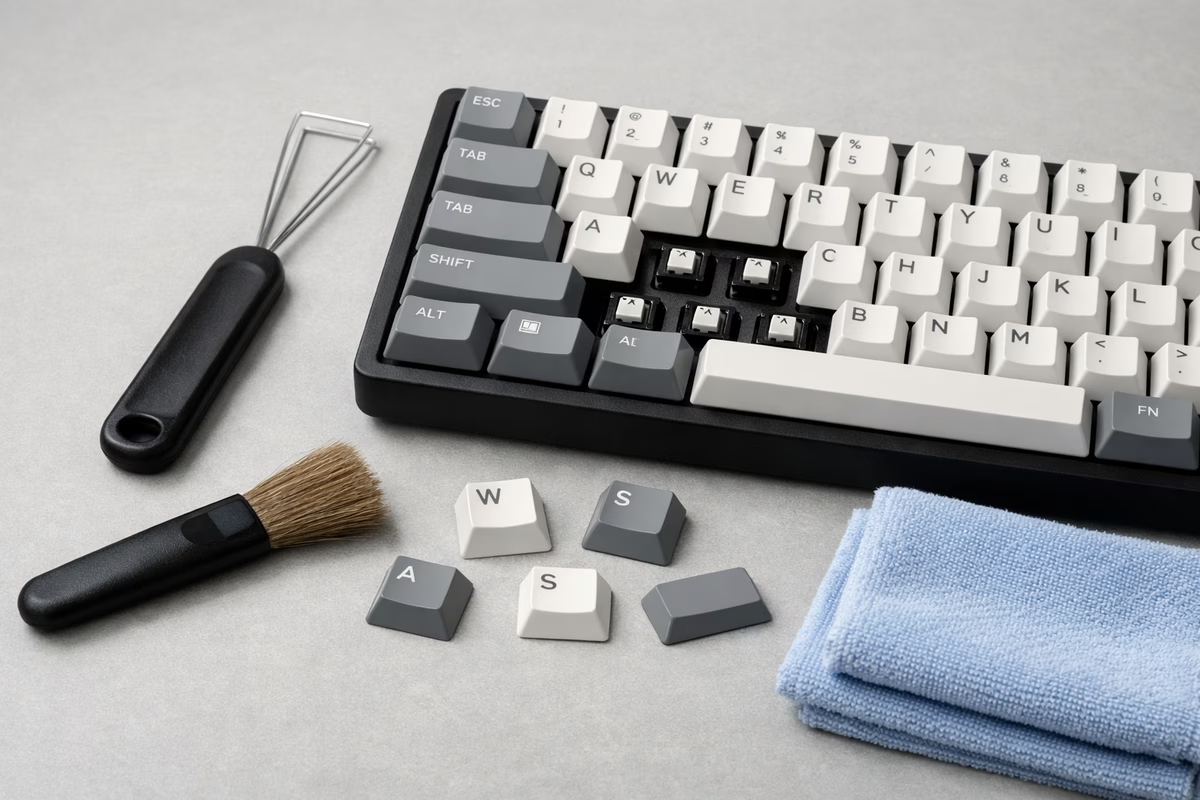
The essentials are simple: a gentle wire keycap puller, compressed air or an electric duster, microfiber cloths, warm soapy water, and a soft brush such as a clean toothbrush. Isopropyl alcohol 70%+ can help with sticky grime on plastic case surfaces and metal plates, but avoid printed legends and use it deliberately. Cotton swabs help in tight crevices, and denture cleaning tablets can be useful for keycap soaking if the caps are plain enough to tolerate it.
Step-by-Step Deep Clean
Step 1: Photo documentation
Take a photo of the layout. This is especially helpful for non‑standard layouts, split boards, and unusual bottom rows.
Step 2: Power down
Unplug the keyboard. For wireless boards, turn the power switch off and remove batteries if it’s easy.
Step 3: Remove keycaps
Pull straight up. Don’t twist aggressively—twisting can stress stems or loosen stabilizer inserts.
If you want a tidy reassembly, pull caps in rows and keep them roughly grouped.
Step 4: Clean the keyboard body
Shake loose debris out, blow dust away with short bursts of compressed air, brush the plate gently, and wipe the case with a slightly damp microfiber cloth. Cotton swabs are useful around stabilizers and tight corners.
Caution: keep compressed air cans upright to avoid spraying cold liquid.
Step 5: Clean keycaps
Most keycaps handle warm soapy water well. Avoid hot water—heat can warp plastic.
Soak keycaps for 15–30 minutes, agitate occasionally, brush the grimiest caps, and rinse thoroughly. Dry them on a towel for 24 hours.
If your keycaps have delicate printed legends, avoid alcohol and harsh scrubbers.
Step 6: Dry everything completely
Keycaps should be truly dry before reinstalling. Moisture trapped in stems is a sneaky way to create problems.
Step 7: Reassemble and test
Start with the spacebar to confirm stabilizers feel right, then install large modifiers, then alphas.
Test every key with a simple keyboard tester.
Spill Recovery (Act Fast!)
Spills are survivable—sometimes. The outcome depends on liquid type, how fast you disconnect power, and how thoroughly you remove residue.
Immediate Actions (First 60 Seconds)
Disconnect immediately: unplug USB or remove batteries, and do not “finish the paragraph.” Flip the keyboard upside down so liquid drains out instead of deeper in. Remove keycaps if possible for airflow and access, then blot around switches rather than wiping, which can push liquid farther into the board.
Recovery Process (Next 24–72 Hours)
Water spills:
For plain water, keep the board upside down for 24–48 hours, use a fan for airflow, and wait before powering on.
Sugary or sticky spills (soda, juice, sweet coffee):
Sugar residue causes corrosion and sticky switches. The board often needs disassembly and cleaning, not just drying.
For sugary or sticky spills, disassemble the case if you can, remove residue carefully, use high-percentage isopropyl alcohol only on appropriate surfaces, and dry thoroughly for 48–72 hours.
If you hear crackling, smell burning, or see visible corrosion, stop and treat it as a repair project.
Switch Maintenance
Switch maintenance is the art of deciding what’s worth touching. You can keep a board happy for years without opening a single switch—unless you enjoy modding.
When to Lube Switches
Lubing is optional. Do it when it solves a real problem: scratchy switches, inconsistent smoothness from key to key, audible spring ping, or a desire for a quieter, more refined feel. Skip it if the switches already feel good, if you do not want a 3–6 hour project, or if this is your first board and you are still learning what stock switches feel like.
How to Lube Switches (Overview)
The details depend on switch design, but the pattern is consistent: open the switch, apply a thin coat of the right lubricant to the right friction areas with a small brush, then reassemble. A switch opener helps; patience matters more than extra tools.
If you want the full deep dive on internals and technique, the building guide is the right place to go.
When to Replace Switches
Switches are wear items, and replacing a failing switch is often faster than trying to “repair” it. Chattering, intermittent registration that cleaning does not fix, a broken stem, or a clear desire for a different feel or sound are all good reasons to swap switches.
Hot‑swap boards make this easy. Soldered boards can still be repaired, but the labor cost is higher.
Stabilizer Maintenance
Stabilizers (spacebar, enter, shift, backspace) are where most “quality” sound comes from. A board can have great switches and still feel cheap if the stabilizers rattle or stick.
Signs Stabilizers Need Attention
Stabilizers need attention when large keys rattle, tick, return slowly, or feel uneven from left to right.
Stabilizer Service (high level)
At minimum, remove the keycap, clean visible grime, and re-lube contact points if needed. If the stabilizer is truly bad, removing it for a full clean and re-lube will usually restore it.
USB Cable Care
Most “random disconnect” issues are cable issues, not electronics failures.
Extending Cable Life
Coil cables loosely when storing them, unplug by the connector rather than the wire, and use a cable clip or holder if your desk setup creates yanks. Avoid sharp crimps at the connector, chair wheels over the cable, and any setup where the connector hangs under tension.
Fixing Connection Issues
If the keyboard disconnects intermittently:
Try a different USB port first, then a different cable if the board uses a detachable one. Inspect the connector for bent pins or debris, then reseat it firmly.
If it still fails, replacing a cable is cheap compared to replacing a board.
Wireless Keyboard Care
Wireless keyboards add battery management and connection stability to your maintenance list.
Battery Maintenance
Rechargeables prefer gentle cycles. Avoid deep discharge when possible, and don’t store a battery completely empty.
If you store the keyboard for months, remove disposable batteries to prevent leaks.
Bluetooth Connection Issues
Most Bluetooth issues are solved by re‑pairing, updating firmware (when appropriate), and reducing interference.
If connection becomes unreliable, check battery level first. Low battery can create strange behavior.
Firmware & Software
Firmware updates can fix bugs, but they can also introduce new ones. Treat updates like small change management.
When to Update Firmware
Update when you need a fix or feature. Don’t update five minutes before an important deadline.
QMK/VIA Keyboards
If you use VIA/QMK tools, export and save your keymap so you can restore it quickly.
Storage (Long-Term)
If a keyboard will sit for months, deep clean it first so oils do not harden, remove batteries, and store it in a cool, dry place. Add silica gel if you live in a humid climate.
When you bring it back, test every key before you rely on it.
Common Problems & Fixes
Problem: Key Chattering (Double‑Typing)
Chatter is often a dirty contact or a failing switch.
Try cleaning (compressed air), then increase debounce delay in firmware if your board supports it. If it persists, replace the switch.
Problem: Key Not Registering
On hot‑swap boards, this is commonly a bent switch pin or a bad socket connection.
If shorting the socket registers input but the switch doesn’t, it’s the switch. If neither registers, it’s likely socket/PCB and becomes an advanced repair.
Problem: Stabilizer Rattle
Rattle is usually a lubrication or fit issue. Re‑lube and ensure the stabilizer is seated properly.
Problem: Sticky Keys
Sticky keys are usually spill residue or too much lubricant. Clean first; if needed, disassemble and de‑lube or replace the switch.
Problem: Mushy Feel
Mechanical boards can feel mushy if over‑lubed or if the plate/case assembly is loose. Recheck assembly and consider whether the feel is actually coming from keycaps (thin ABS can change perception).
Extending Keyboard Lifespan
The “secret” to a 10–20-year keyboard is boring consistency: keep it clean, keep liquids away, fix small issues early, and reduce cable stress.
Mechanical keyboards reward care because most parts are modular: keycaps, switches, stabilizers, cables, and even plates can be replaced.
When to Replace vs. Repair
Repair is usually worth it when the issue is isolated (one switch, a rattly stabilizer, a dead cable). Replacement is usually rational when the PCB is corroded or multiple traces are dead.
If a board is sentimental or rare, repair makes sense even when it’s not economical.
Final Maintenance Wisdom
Your keyboard is a tool you touch thousands of times a day. Treat it like a good chef treats a knife: keep it clean, store it well, and fix problems before they become failures. The payoff is reliability—and that satisfying “this feels right” moment every time you sit down to type.
Next Steps
For keyboard internals, continue with the Building Guide . To understand switch-specific maintenance needs, read the Switch Guide . For keeping caps in good condition, use the Keycaps Guide .