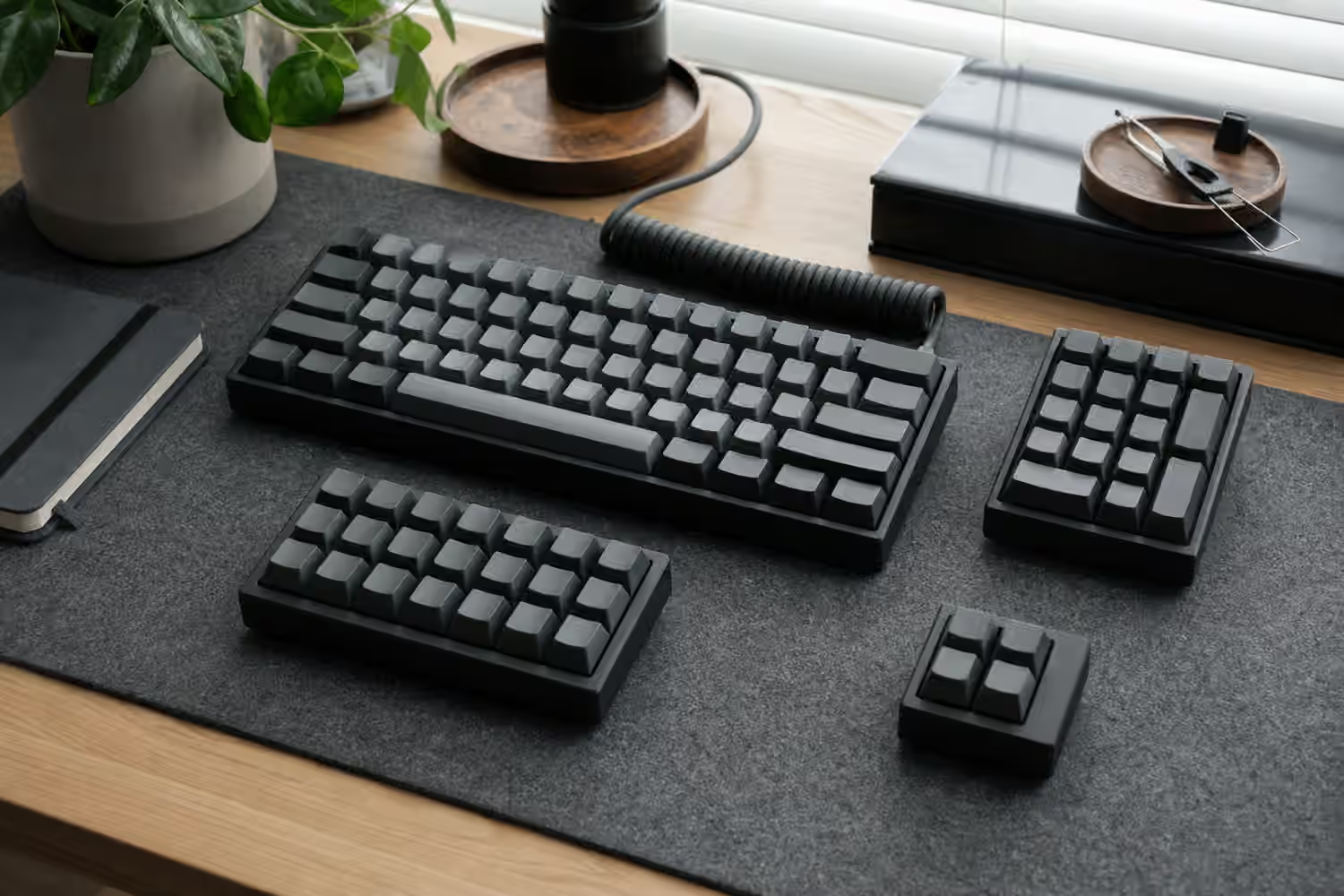
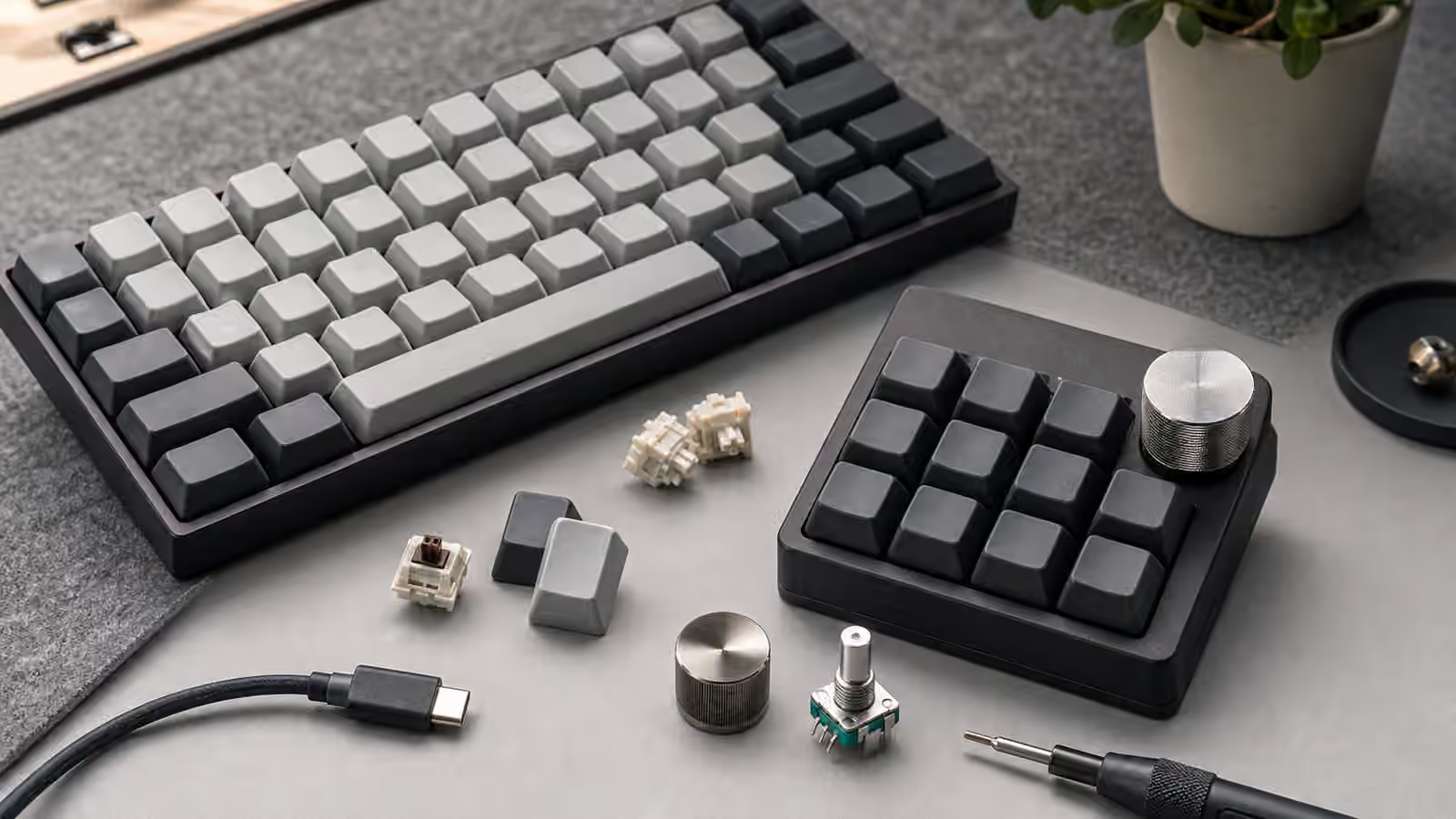
A keyboard knob looks simple: turn left, turn right, sometimes press down. That simplicity is why it can be useful. A rotary encoder gives one hand a physical control that is different from a keypress. It can adjust volume without tapping the same key repeatedly, scrub through a timeline, move a brush size, zoom a canvas, scroll a page, or switch tools. It can also become a shiny unused corner of the board if the assigned action does not match the way you work.
This guide covers encoders as part of a keyboard setup, not as a general electronics lesson. If the encoder lives on a separate pad, read External Numpads and Macropads too. If you are deciding how to program the control, the Keyboard Macros and Shortcut Workflow Planning guide will help keep the mapping useful instead of ornamental.
What an encoder actually sends
Most keyboard rotary encoders do not behave like analog knobs in the studio-equipment sense. They usually send repeated digital steps: one action for clockwise movement, another for counterclockwise movement, and sometimes a separate action when pressed. Firmware translates those steps into keystrokes, media commands, mouse wheel events, or custom functions. The computer receives commands, not a continuous physical position.
That distinction matters because the knob has no inherent memory of “volume at 40 percent” or “brush size set to medium” unless the software receiving commands maintains that state. Turn the knob left and it may send volume down. Turn it right and it may send volume up. If the active application changes, the same turn may do something else if you programmed it that way. This is powerful, but it also means context needs to be handled carefully.
Detents, or the small clicks felt during rotation, shape the experience. A clearly detented encoder gives feedback for each step, which suits volume, scrolling, and discrete selection. A smoother encoder can feel better for continuous creative controls, but the firmware may still process steps. Knob size adds leverage. A large metal knob can feel premium and easy to grab, though it may be heavy enough to stress a weak mount or easy to bump by accident.
Good uses feel proportional
The best encoder mappings are actions that naturally increase and decrease. Volume is the obvious example because the physical turn matches the mental model. Zoom, brush size, timeline movement, page scrolling, tab cycling, and lighting level can also work when the software responds consistently. A knob is less convincing when it triggers unrelated commands in each direction. Turning left to open one app and right to paste text may be memorable for a day, then confusing later.
Press actions should be related to turning when possible. If turning adjusts volume, pressing can mute. If turning scrolls, pressing can switch scroll mode or center the view. If turning changes brush size, pressing can toggle the tool. The relationship helps memory. A knob with three unrelated actions asks the user to remember a tiny layer without the visual structure of keys.
Application-specific controls deserve restraint. A knob that is excellent in one editor may be useless in a browser. If the keyboard stays at one workstation and the workflow is stable, that may be fine. If the board travels, controls should remain more general. The Wireless Mechanical Keyboards guide is relevant when a knob-equipped board also has battery, dongle, and multi-device behavior to manage.
Placement decides whether it gets used
An encoder in the top right corner looks tidy, but placement should follow reach. If you adjust volume during calls, a corner knob may be perfect. If you use the knob while typing, placing it far from the home position may make it slower than a normal shortcut. If the knob sits beside backspace, delete, or escape, think about accidental bumps. A tall knob near the main key field can be hit by a hand, sleeve, cable, or notebook.
On compact boards, an encoder consumes space that could hold a key. That trade is worth it only when the turn action does something a key cluster cannot do as comfortably. On a 65 percent or 75 percent board, the knob often replaces a top-corner key. On a macropad, the cost is lower because the pad already exists for extra controls. On split keyboards, knob placement can be more personal because each half can place controls near a thumb, index finger, or outer column.
Desk layout also matters. A right-side knob may compete with the mouse hand. A left-side macropad can be convenient for media or creative work because the right hand stays on the mouse. If the cable pulls the pad away or the pad slides on the desk, the knob becomes less usable. The Keyboard Desk Mats and Surface Sound guide covers surface stability, which matters for small modules as much as full keyboards.
Build quality shows up in small movements
A good encoder should feel secure. It should not wobble heavily, scrape the case, or miss steps during normal turning. A little shaft movement is common, but the knob should not feel loose enough to distract. The knob cap should fit the shaft correctly, with a set screw or friction fit that does not slip. If the cap sits too low, it can rub the case. If it sits too high, it can feel unstable.
The PCB and case need to support the encoder physically. Some encoders are soldered to the PCB, some are additionally supported by the case or plate, and some sit on small daughterboards. A tall heavy knob can put leverage on the solder joints if the design is weak. This is not a reason to avoid knobs, but it is a reason to be cautious with oversized metal caps on delicate boards.
Encoder failures are usually more annoying than dramatic. A turn may skip, double step, or move in the wrong direction if the hardware, firmware, or mapping is wrong. Dirt and wear can affect older controls. Firmware settings can also make acceleration or step handling feel strange. If a knob behaves inconsistently, test it with a simple mapping first before assuming the application is at fault.
Firmware should stay understandable
Encoder configuration can be simple or complex depending on the keyboard. Some tools expose media and scroll actions directly. Others require firmware edits. The QMK and VIA Firmware Guide explains the broader programming world, but the encoder principle is straightforward: make the turn behavior predictable and test it in the place where it will be used.
Layered encoder behavior can be useful. On the base layer, the knob might control volume. On a navigation layer, it might scroll. On a creative layer, it might zoom. This works when the layer state is obvious to the user. It fails when you turn the knob expecting volume and the board is still on a layer that changes something else. Momentary layers reduce that risk because behavior changes only while the layer key is held.
Avoid hiding critical commands behind a knob press unless the press is reliable and easy to distinguish from turning. Some encoders wobble slightly during press, and some users press while rotating by accident. A mute toggle is usually safe. A destructive command is not. Treat the knob like any other key: the easier it is to trigger, the safer its action should be.
Deciding if a knob belongs on your board
A rotary encoder is worth choosing when it supports a repeated, directional action and sits where your hand can use it comfortably. It is less valuable when it exists because the board needed a visual feature. Before buying a knob-equipped keyboard, imagine the three actions you would assign today. If only one feels real, that may still be enough. A great volume knob can justify itself. If none feel real, a normal key may serve you better.
For a separate macropad, test placement with any small object before buying. Put it where the pad would sit and reach for it during work. If your hand ignores it, the final device may be ignored too. If the reach feels natural and the action is frequent, an encoder can make the desk feel calmer. The best knob does not make the keyboard look more advanced. It turns one repeated adjustment into a movement your hand understands immediately.