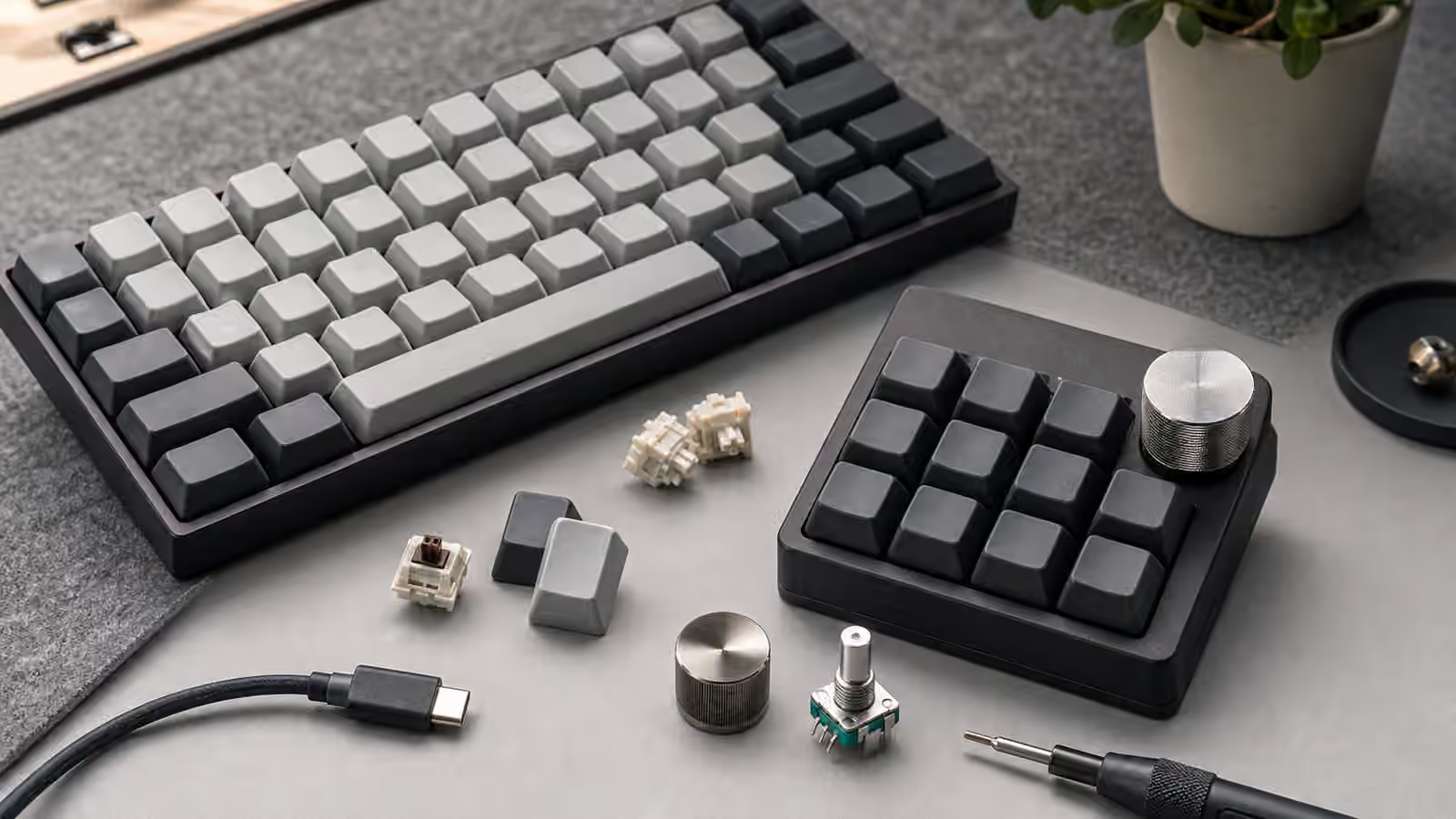

A mechanical keyboard can feel perfect on one computer and slightly wrong on another. The switches have not changed, the layout has not changed, and the keycaps may even look the same, but the operating system reads the modifier keys through its own habits. The key beside the spacebar may be treated as Command on one machine, Alt on another, and Meta or Super on a third. A shortcut that lives in your hand on a Mac can land in the wrong place on a Windows desktop. A compact board that felt clever in VIA can become awkward the moment it is paired with a work laptop that expects a different bottom row.
This is not a reason to avoid custom boards or programmable layouts. It is a reason to treat modifier mapping as part of setup rather than a small annoyance to solve after everything else. If you are still choosing the size of the board, start with the Keyboard Layout Guide and the Compact Keyboard Layers guide. Physical size decides how much work the firmware has to do. Once the board is on the desk, the question becomes where the operating-system translation should happen, how visible it should be, and how much of your muscle memory you want to move.
The same keys carry different expectations
Most full-size keyboards give you a familiar bottom row: Ctrl, operating-system key, Alt, spacebar, Alt, menu or system key, Ctrl. A Mac keyboard looks similar at a glance, but the daily shortcut key is Command, not Control. Option behaves like a character and symbol modifier in many places where Windows users expect Alt to open menus. Linux desktops vary by environment, but Ctrl usually remains central for application shortcuts, while Super often opens launchers, window controls, or workspace commands.
The problem is not that any one arrangement is wrong. The problem is that your hands learn a relationship between position and action. On a Mac, copy is usually the key immediately left of the spacebar plus C. On Windows and many Linux environments, copy is usually the far-left bottom-row modifier plus C. If you move between systems without planning, you may either relearn every shortcut in each room or remap the board so the same physical key does the work your hand expects.
Mechanical keyboards add another layer because many boards are designed around Windows-style legends even when they are used with Macs. A keycap marked Alt may behave as Option. A keycap marked with a system icon may behave as Command. Blank or novelty keycaps make this less visually annoying but do not solve the habit underneath. Legends are labels. The operating system sees keycodes.
Decide where the translation belongs
There are three common places to solve modifier mismatch: the operating system, the keyboard firmware, and the application layer. Each can work, but they create different maintenance habits. Operating-system remapping is often the easiest first step because it leaves the keyboard unchanged. macOS has built-in modifier key remapping for many keyboards. Windows can use system settings for some language and layout choices, while deeper key remapping often depends on vendor software or trusted utilities. Linux desktops vary, but many provide keyboard layout and modifier controls through settings panels, configuration tools, or compositor-specific files.
Firmware remapping moves the decision into the keyboard itself. If a board supports VIA, Vial, QMK, or a vendor editor, you can make the physical key next to the spacebar send the code you want before the operating system has an opinion. The QMK and VIA Firmware Guide covers the deeper side of that work. Firmware mapping is useful when one keyboard travels between many computers and you want it to present a consistent layout everywhere. It is less convenient when one keyboard needs to behave differently on different machines, because the board may need profiles, layers, or repeated edits.
Application-level shortcuts are the narrowest fix. A code editor, terminal, design tool, or browser may let you change shortcuts inside that program. This can help when one app is the only source of friction, but it is a poor place to repair the whole keyboard. If copy, paste, window switching, screenshot keys, and launcher shortcuts all feel wrong, the issue belongs lower in the stack.
Compact keyboards make the decision more visible
On a full-size keyboard, a bad modifier map is irritating. On a compact keyboard, it can break the layout. A 60 percent board may depend on layers for arrows, function keys, media controls, and navigation. A 40 percent board may put punctuation, arrows, and system shortcuts behind thumb keys. A split ergonomic board may move important modifiers to thumb clusters. In those layouts, modifier mapping is not a cosmetic preference. It is the structure that lets the board make sense.
The safest compact layout is one where the most frequent shortcuts remain under relaxed fingers. If you use a Mac all day, that usually means making the thumb-side key near the spacebar behave like Command. If you use Windows or Linux, that same physical position may feel better as Alt, Super, or a layer key depending on your workflow. A layout copied from another person’s screenshot may look elegant and still fight your actual work if their operating system habits differ from yours.
Layer keys deserve special caution. It is tempting to use every spare modifier as a dual-role key: tap for Escape, hold for Control, tap for Space, hold for layer access. Those tricks can be useful, but they also introduce timing rules. If a shortcut fails only when you type quickly, the issue may be a hold-tap decision rather than the operating system. Start with a plain map that you can explain in one sentence, then add dual-role behavior only where the benefit is obvious.
Keycaps can help or stay quiet
The keycap set can either reinforce the map or stay deliberately neutral. A Mac-focused set may include Command and Option caps. A Windows-focused set may include Ctrl, Alt, and a system key. Many enthusiast sets include several bottom-row alternatives, but not always in the profile, size, or color you need. Before buying a set for a cross-platform board, read the Keycap Compatibility guide and check the bottom row as carefully as the alphas.
There is no rule that the legends must describe every modifier perfectly. Some people prefer blank modifiers because the keys become positions rather than words. Others need accurate legends because the keyboard is shared, borrowed, or used in a classroom, office, or family desk. The right answer depends on who has to use the board. A private writing keyboard can be cryptic if your hands understand it. A shared keyboard should be more literal.
Shine-through legends and decorative icons add another complication. A symbol may look clean but fail to communicate the operating-system behavior to anyone else. If the keyboard moves between a Mac and a Windows desktop, a simple neutral icon may be better than a specific label that is wrong half the time. The Keycap Legends and Manufacturing Methods guide is useful here because durability and readability matter more when the legends are doing real work.
Shared desks need boring consistency
Modifier mapping becomes more important when the keyboard is not yours alone. A home office shared by two people, a lab bench, a studio workstation, or a hot desk can turn a clever personal map into friction for the next person. If the board lives in a shared space, decide whether it should follow the room or the owner. A keyboard that stays with a Mac should probably behave like a Mac keyboard. A keyboard that moves between machines may need a visible profile switch, conservative legends, and a small amount of restraint.
Wireless boards add another small layer because multi-device pairing can hide which computer is currently receiving input. The Wireless Mechanical Keyboards guide covers pairing and connection trade-offs, but modifier behavior is part of the same experience. If host one is a Mac and host two is a Windows desktop, switching the radio without switching the map can make the first shortcut after the change land wrong. Some keyboards support per-device profiles. Others do not. Test that before relying on it.
Wired boards are simpler, but docks and KVM switches can still create confusion. A keyboard plugged into a switch may serve multiple operating systems in one afternoon. In that case, the most reliable map is often the one that makes the least surprising choice on every machine, with operating-system-specific changes handled on each computer. The Keyboard Cables, USB Ports, and Desk Connectivity guide explains the physical side of that setup. The modifier map is the behavioral side.
Test with real shortcuts, not a key tester alone
A keyboard tester can confirm that a key sends Control, Alt, GUI, or another code, but it cannot tell you whether the map feels right during work. Test the shortcuts you actually use. Copy, paste, undo, save, app switching, window switching, screenshot capture, terminal interrupt, browser tab movement, launcher access, and text navigation reveal more than a single keypress. Use the board for a normal writing session or coding session before deciding the map is finished.
Pay attention to errors that happen under speed. If you often hit the wrong key beside the spacebar, the physical map may be fighting old memory. If a dual-role key delays shortcuts, the firmware timing may need to be simpler. If the map works in one app and not another, the operating system may be translating correctly while the application has its own shortcut layer. Diagnose the level before changing everything.
It also helps to keep a reversible record. Save the VIA layout, export the firmware configuration, or take a screenshot of the operating-system modifier settings. A good map becomes invisible after a week, which means it is easy to forget how you made it. That is harmless until you reinstall a machine, flash the keyboard, or lend the board to someone who needs the default behavior back.
When defaults are the better choice
Not every mismatch deserves a custom map. If you use one operating system almost all the time and only visit another briefly, it may be easier to accept the temporary difference. If the keyboard is a normal full-size board with clear legends, defaults make support and sharing easier. If you already switch comfortably between laptop and external keyboard shortcuts, aggressive remapping can create more confusion than it removes.
The goal is not to make every computer pretend to be the same. The goal is to make the keyboard predictable enough that your hands can work without pausing. Sometimes that means mapping the board to match your main operating system. Sometimes it means using neutral firmware and letting each computer translate the modifiers locally. Sometimes it means choosing keycaps that stay out of the argument.
A good modifier map is quiet. The copy shortcut lands where your fingers expect it. The launcher opens without thought. The compact layer does not steal a key you need for normal shortcuts. The legends either help or politely disappear. Once those pieces line up, the keyboard stops feeling like a visitor from another operating system and starts feeling like part of the desk.