Compact keyboards are appealing because they give your mouse more room and bring your hands closer together. A 65 percent or 75 percent board can make a desk feel calmer without making typing feel strange. The hesitation is usually the same: what happens on the day you need a numpad, a bank of function keys, or a few dedicated shortcuts that do not fit on the main board?
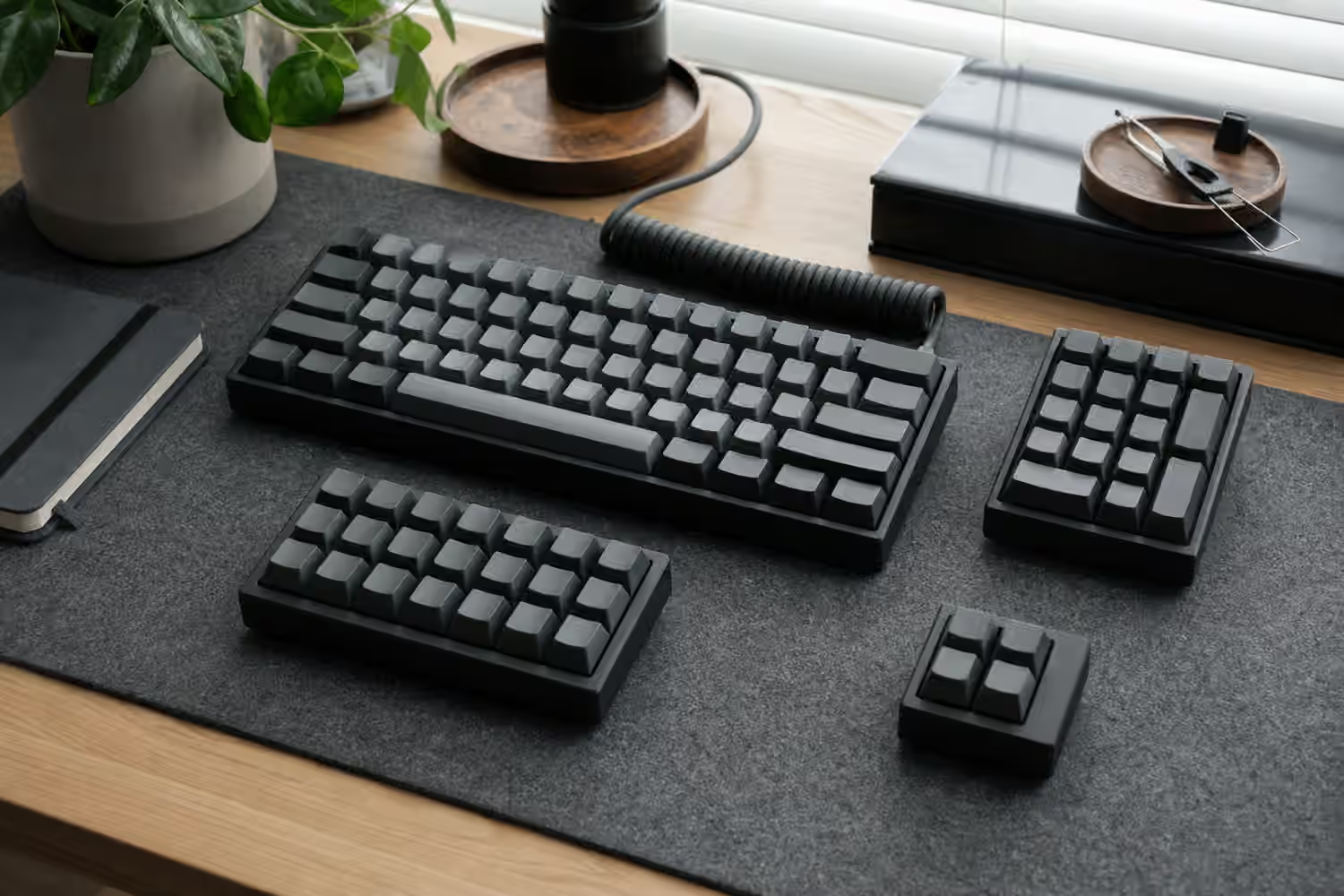
The answer does not have to be a full-size keyboard. External numpads, macropads, and small navigation clusters let you keep the main board compact while adding keys only where they help. The modular approach can be more ergonomic than a permanent full-size layout because the extra keys are not locked to the right side of the keyboard all day. They can move to the left, sit behind the keyboard, slide forward for a spreadsheet session, or disappear into a drawer when the work changes.
If you are still deciding how small the main board should be, start with the Keyboard Layout Guide . This guide assumes you already like the idea of a compact board and want to understand the add-on path.
A separate numpad changes the full-size compromise
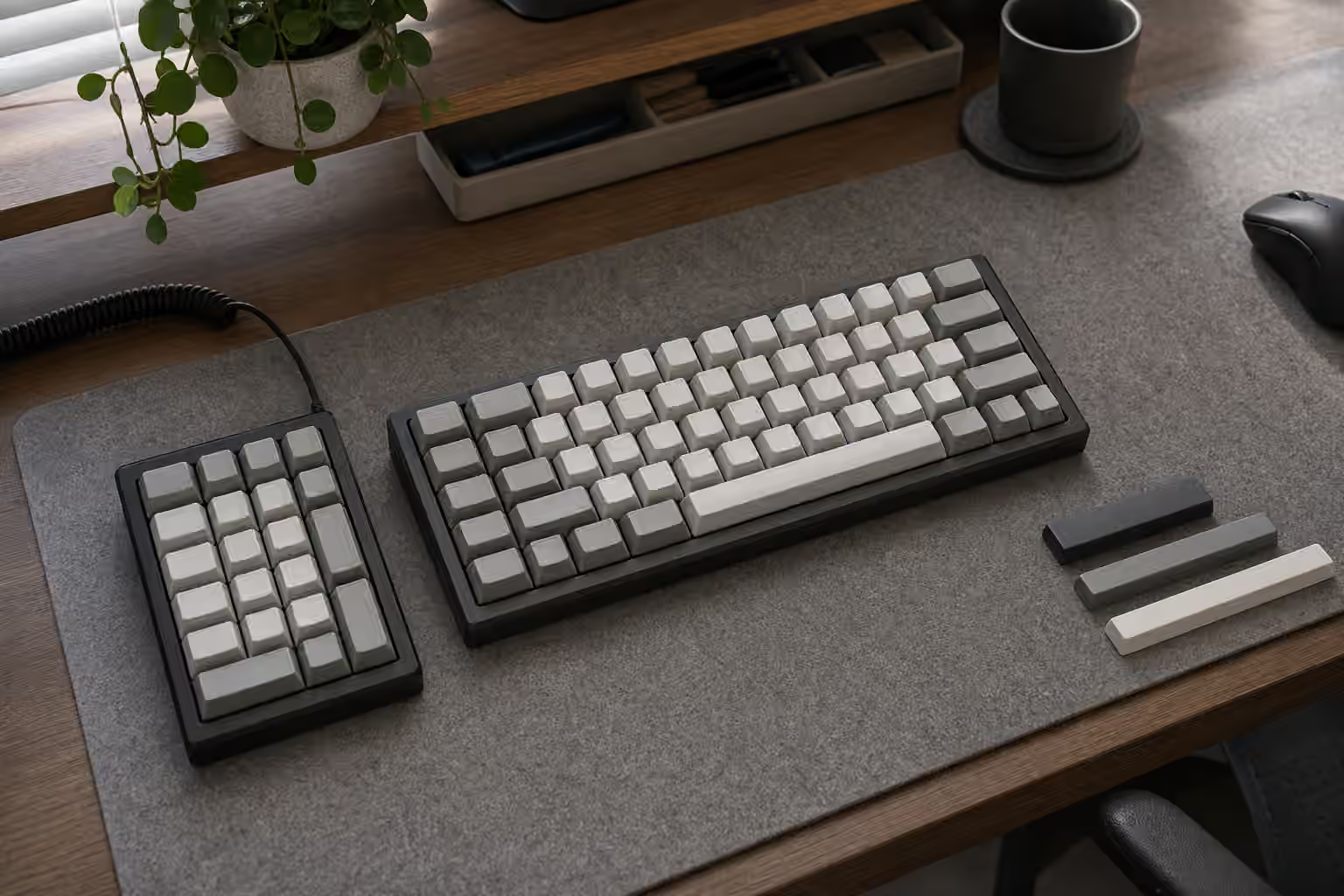
The numpad is the main reason many people stay with full-size keyboards. It is useful for spreadsheets, invoices, CAD, data entry, finance work, and any task where a row of number keys feels clumsy. The problem is that a built-in numpad makes the keyboard wide every hour of the day, even when numbers are not the task. That width pushes the mouse outward, which can make the shoulder reach feel worse over long sessions.
A separate numpad keeps the useful part and removes the permanent penalty. When number entry matters, place the numpad where your hand wants it. Many right-handed users still put it on the right for familiar entry. Others put it on the left so the right hand can stay on the mouse while the left enters numbers. That left-side setup feels odd for a few days, but it can become efficient for spreadsheet review, design work, and any workflow that alternates pointing with numeric input.
The best numpad is not always the fanciest one. A stable case, sensible key spacing, clear firmware or driver behavior, and switches that match the job matter more than decorative lighting. If you enter numbers quickly, a firm medium switch may feel better than a very light switch that triggers by accident. If the numpad lives near a microphone or in a shared room, quieter switches and a desk mat may matter more than matching the sound of the main board.
Macropads are for repeated intent, not random novelty
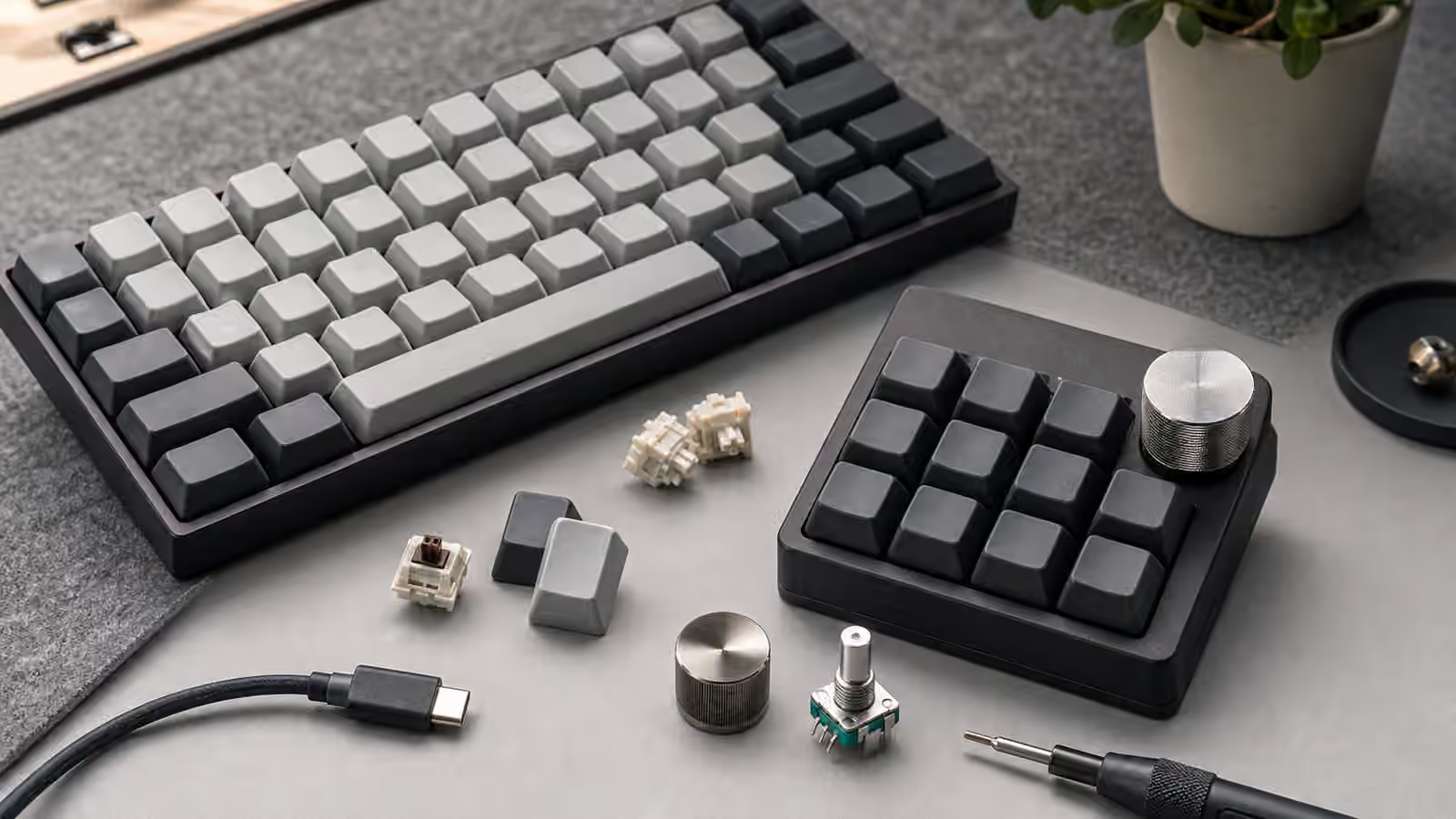
A macropad is a small keyboard that maps each key to a command, shortcut, layer, phrase, or system action. It can be a row of four keys, a grid of sixteen, a knob with a few buttons, or a small board with a display. The useful question is not how many keys it has. The useful question is what repeated intent deserves a physical place on the desk.
Good macropad uses tend to be boring in the best way. Mute and unmute. Start a recording. Toggle a lighting scene. Insert a code snippet. Switch tools in a drawing app. Trigger a window layout. Move between virtual desktops. Control media while the main keyboard is on another layer. These are actions you perform often enough that a dedicated key removes friction.
Bad macropad uses are usually fantasy workflows. It is easy to map twenty commands in an evening and use two of them the next day. A smaller macropad with memorable positions often beats a larger one that becomes a second keyboard you have to study. If your compact board already has strong layers, read Compact Keyboard Layers for Daily Work before buying extra hardware. Sometimes the better answer is a cleaner layer map. Sometimes the better answer is a physical pad because the command should not depend on holding another key.
Navigation clusters can be more useful than they look
Many compact layouts keep arrow keys but move Home, End, Page Up, Page Down, Insert, Delete, and Print Screen to layers. That is fine for many people. It is irritating for others, especially writers, editors, spreadsheet users, and developers who navigate text constantly. A tiny external navigation cluster can solve that problem without returning to a wide main keyboard.
The advantage is placement. A navigation cluster can sit above the arrows, to the left of the keyboard, or near the mouse. If you review documents with one hand on the mouse, a left-side cluster with page movement and editing keys can feel natural. If you mostly use keyboard shortcuts, a small cluster above the main board may be enough. The point is not to reproduce the old full-size nav island perfectly. The point is to put the few navigation keys you miss where they are easiest to reach.
This is also where legends become less important than you might expect. A blank macropad or nav cluster can work well if the layout is stable and the positions are memorable. If several people share the desk, printed or relegendable caps may be kinder. If only you use it, muscle memory can handle more than the eye needs.
Firmware decides how modular the setup feels
The smoothest modular setups behave like one coherent keyboard even when they are separate devices. Firmware support matters here. A VIA or QMK-compatible macropad can be remapped quickly, use layers, send media keys, and sometimes coordinate lighting or rotary encoder behavior. Simpler devices may depend on vendor software or fixed shortcuts. That can still be fine, but it changes how long the module will remain useful as your workflow changes.
The QMK and VIA firmware guide explains the difference between easy remapping and deeper programmable behavior. For an external module, the practical test is whether you can change it without dread. If changing a key requires opening unreliable software, keeping a driver installed, or remembering a strange flashing process, you may stop refining the layout. A module that is easy to adjust invites small improvements.
Operating system behavior matters too. Some shortcuts differ between macOS, Windows, and Linux. A macropad used across machines should send commands that make sense everywhere or have profiles you can switch deliberately. The keyboard modifier mapping guide is useful if your module needs Control, Option, Command, Alt, or Super to behave consistently.
The desk plan is part of the purchase
External modules add flexibility, but they also add objects, cables, and possible clutter. A compact board with three add-ons permanently scattered around it may lose the calm that made compact appealing in the first place. Before buying, picture where the module will live during normal work, where it will move during specialized work, and where it will go when not in use.
Cables can be simple if the module stays put. They become annoying if you move the module often. A detachable USB-C cable helps, but cable angle, port placement, and desk routing still matter. Wireless modules remove the cable but add battery maintenance and sometimes sleep behavior. The keyboard cables and USB connectivity guide covers the desk side of that decision.
Height is another quiet detail. A tall macropad beside a low-profile keyboard can feel awkward. A numpad with a steep typing angle may be uncomfortable if your main board sits flat. If the module is used for long sessions, treat it like a keyboard, not a remote control. Match height, angle, and reach as closely as the desk allows. The keyboard desk fit guide gives the broader ergonomics context.
A modular setup should earn its space
The best external module is the one that makes the compact keyboard easier to keep. A numpad earns space when number entry is real but not constant. A macropad earns space when it holds repeated actions you can remember without looking. A navigation cluster earns space when layers are slowing down daily text movement. Each module should have a job clear enough that you would miss it if it were gone.
Start small if you are unsure. A compact keyboard plus one external numpad or one modest macropad teaches you more than a desk full of accessories. Use it for a few weeks, notice which keys become automatic, and remap the rest. The modular desk works because it can change shape. Let it stay flexible instead of rebuilding the full-size keyboard in pieces.