Keyboard macros are useful when they remove a repeated motion. They become annoying when they ask you to remember a private language that only made sense on the day you programmed it. A good macro layer feels less like a trick and more like a small extension of your habits. It puts the next action where your hands already are, respects the shortcuts you know, and stays easy to explain when you return to the board after a week away.
This guide assumes the keyboard can be programmed through firmware or configuration software, but it stays focused on design judgment rather than one tool. For the broader programming foundation, read the QMK and VIA Firmware Guide . If your main issue is reaching missing keys on a small board, Compact Keyboard Layers is the better starting point. Macros are most useful after the normal layout already works.
Start with friction, not novelty
The worst reason to add a macro is that an empty key exists. Empty keys invite cleverness, and cleverness is often hard to remember. Start instead with the gestures that interrupt you every day. Maybe a shortcut requires an awkward chord. Maybe a window command lives too far from the home row. Maybe a repeated editing action uses the same sequence of keys twenty times an hour. Maybe a meeting mute key needs to be reliable without looking down.
The strongest macro candidates are frequent, low-risk, and easy to name. A command you use constantly deserves a better home. A dangerous action, such as deleting files or sending messages, deserves more hesitation. A command you use once a month probably does not belong on a prime key unless the consequence of forgetting it is small. Keyboard layers are a limited space, so the habit has to justify the real estate.
Watch your own hands before changing anything. Keep a small note for a few work sessions and write down moments where a shortcut felt awkward. Do not start by copying someone else’s layout photo. Their applications, operating system, hand size, language, and work rhythm may be different. A macro layout should begin with your repeated motions, not with a gallery of impressive layers.
Keep the base layer boring
The base layer should stay predictable. Letters, numbers, modifiers, and common punctuation are the ground under the rest of the setup. If every normal key has a secret behavior, typing becomes a negotiation. That may be worth it for some compact keyboard users, but most people benefit from a plain base and a few intentional layers. The Keyboard Modifier Mapping Across Operating Systems guide is helpful if your board moves between Mac, Windows, and Linux because modifier confusion can ruin otherwise good macros.
Put macros on a layer that has a clear physical idea. A navigation layer might keep arrows, home, end, page movement, and selection commands near each other. A media layer might hold volume, play, mute, brightness, and microphone controls. A work layer might collect editor commands or window movement. The key is not the exact grouping. The key is that the grouping can be remembered as a place, not a pile.
Names matter even if the keyboard has no screen. If you cannot describe a key in a short phrase, it may be too vague. “Mute microphone” is memorable. “Run my long afternoon setup sequence unless the wrong app is focused” is fragile. Some advanced workflows deserve complex automation, but the keyboard is often the wrong place for logic that depends on context the board cannot see.
Macros should respect application focus
A keyboard sends keystrokes. It usually does not know what the computer will do with them. That means a macro that works perfectly in one application can do something strange in another. A shortcut for formatting text may be harmless in a document and meaningless in a terminal. A multi-step macro can become risky if a dialog box, browser field, or remote desktop window has focus.
This is why small macros age better than long sequences. A single chord that triggers a known system shortcut is easier to trust than a ten-step script typed blindly into whatever window is active. If you need application-aware automation, it may belong in operating system tools or the application itself, with the keyboard only sending a trigger. The board should not be blamed for lacking context it was never designed to have.
For shared or travel boards, be even more conservative. A macro that depends on a local app, a custom keyboard layout, or a specific language setting may fail on another machine. If the keyboard crosses computers often, use universal actions on the board and leave machine-specific automation to each computer. The Keyboard Travel and Storage guide covers the physical side of moving boards, but layout portability is part of travel too.
Muscle memory needs landmarks
Macros are easiest to remember when the key location makes physical sense. A mute key near media controls, a screenshot key near system commands, or a window movement cluster shaped like arrows gives your hand a clue. Random placement forces memory to do all the work. On a small board, the best macro might be less convenient on paper but easier to remember because it sits inside a meaningful cluster.
Layer access should be comfortable. If the layer key is awkward, every macro behind it becomes awkward. Hold keys can work well when the timing feels natural, but they can cause accidental triggers if the threshold fights your typing. Toggle layers can be calmer for tasks that take several actions, but they need a clear way out. The Home-Row Mods and Hold-Tap Timing guide is useful if your macro layer depends on dual-role keys.
Do not change too many mappings at once. A new macro only becomes useful after your hands learn it. If five new shortcuts arrive together, none of them gets enough attention. Add one or two, use them for a few days, and remove the ones you avoid. Avoidance is evidence. If a macro is technically available but your hand keeps using the old shortcut, the macro is in the wrong place, poorly named in your memory, or not worth keeping.
Macropads and extra modules can reduce pressure
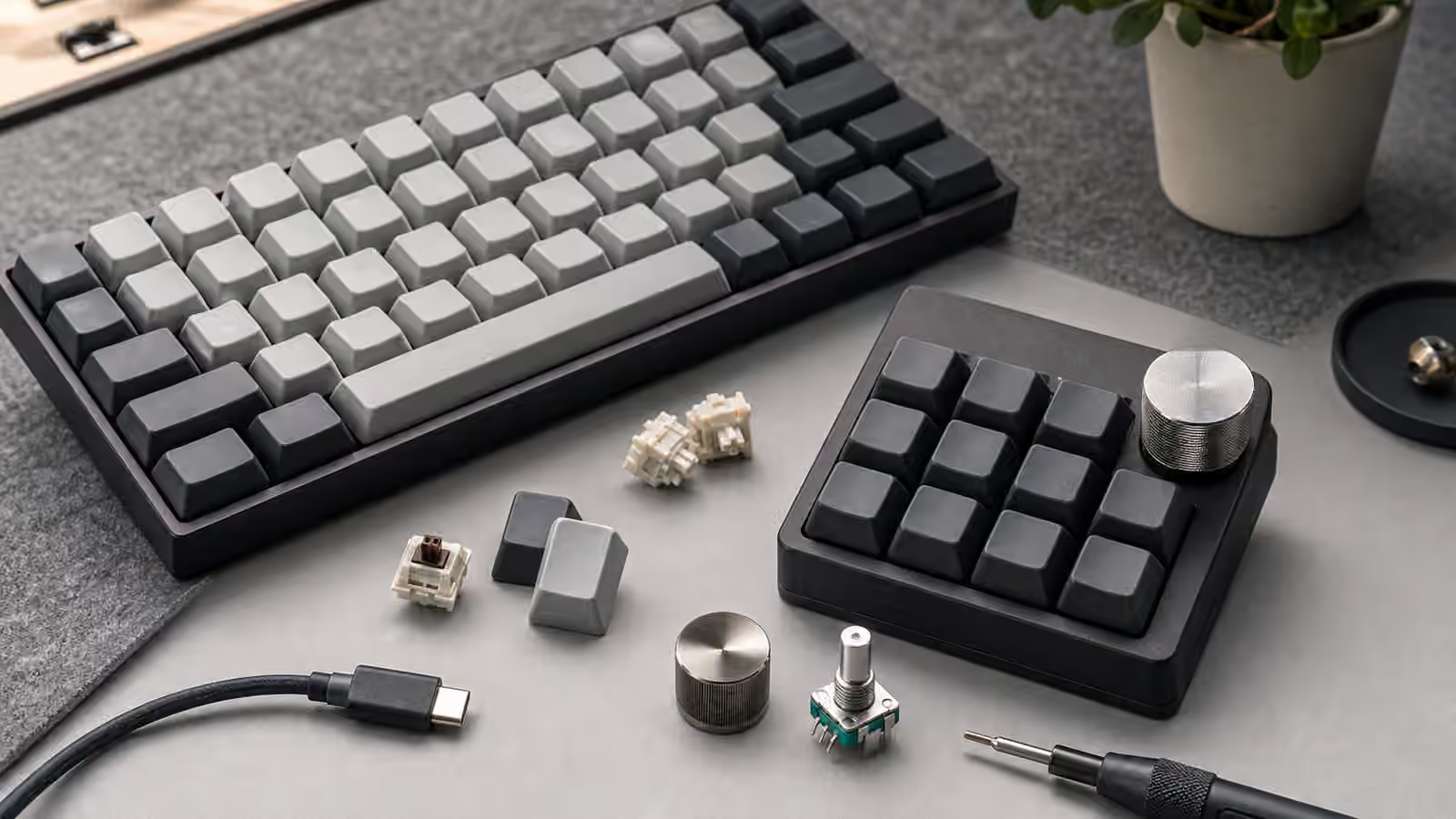
A separate macropad is useful when the main keyboard should stay clean. It gives large, visible controls to commands that do not belong on the typing layer. Stream controls, media keys, drawing shortcuts, spreadsheet actions, and testing keys can all live on a pad without crowding letters and modifiers. The External Numpads and Macropads guide covers the desk setup side of that choice.
The trade-off is reach. A macropad too far from the hands becomes decorative. Place it where the action deserves to live. If a command is used while typing, it should be near the typing position. If it is used during calls, media control, or occasional app switching, a side pad may work well. A knob or encoder can also be useful for continuous controls such as volume, zoom, brush size, or timeline movement, but only when the turn action maps naturally to the task.
Keep labels out of the critical path if the goal is speed. Blank caps can work when the layout is small and memorable. Printed or themed caps can help at first, but they can become wrong after the macro changes. The most durable label is usually the physical grouping and your notes outside the keyboard, not decorative legends that freeze an old idea.
Document the layout before it becomes folklore
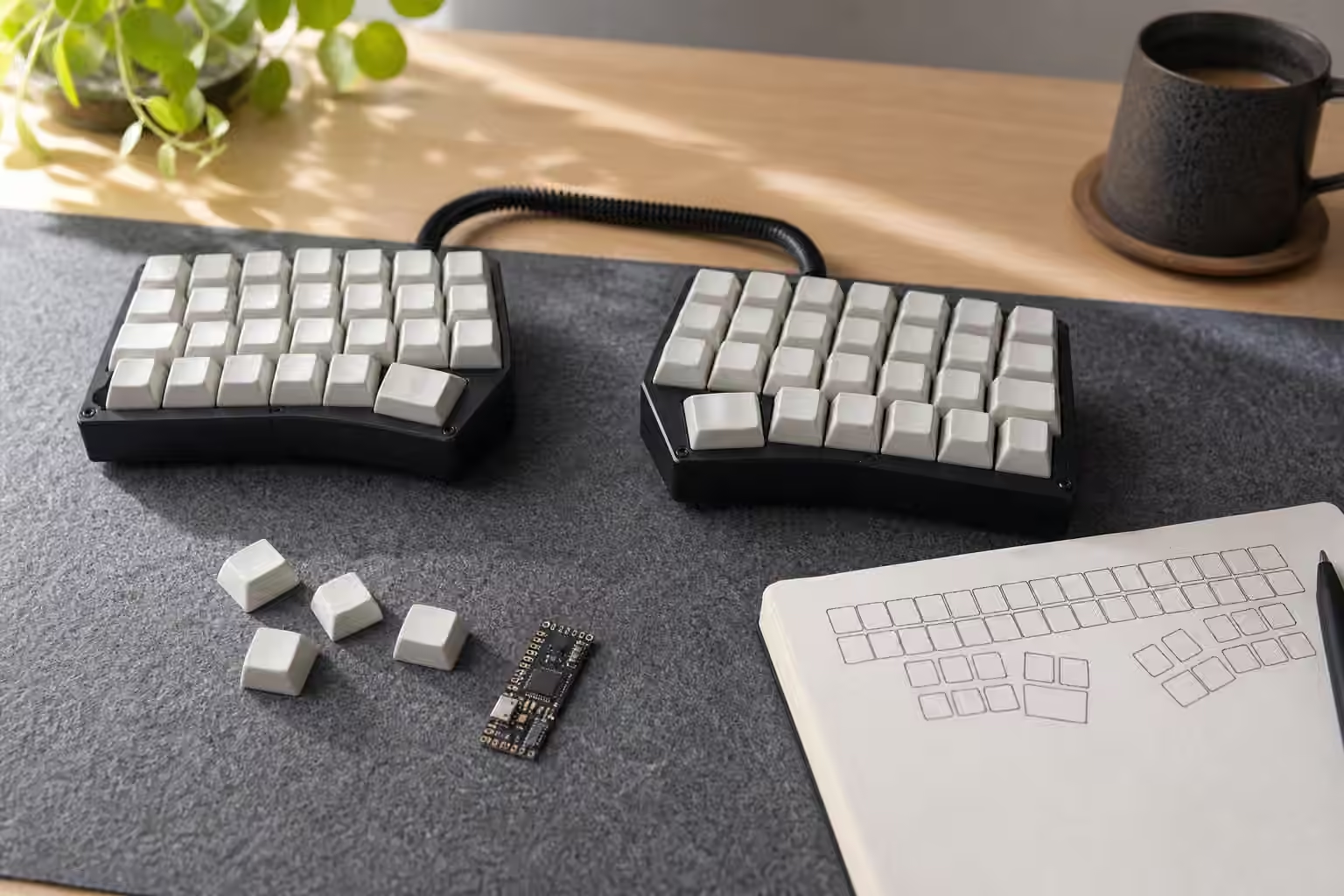
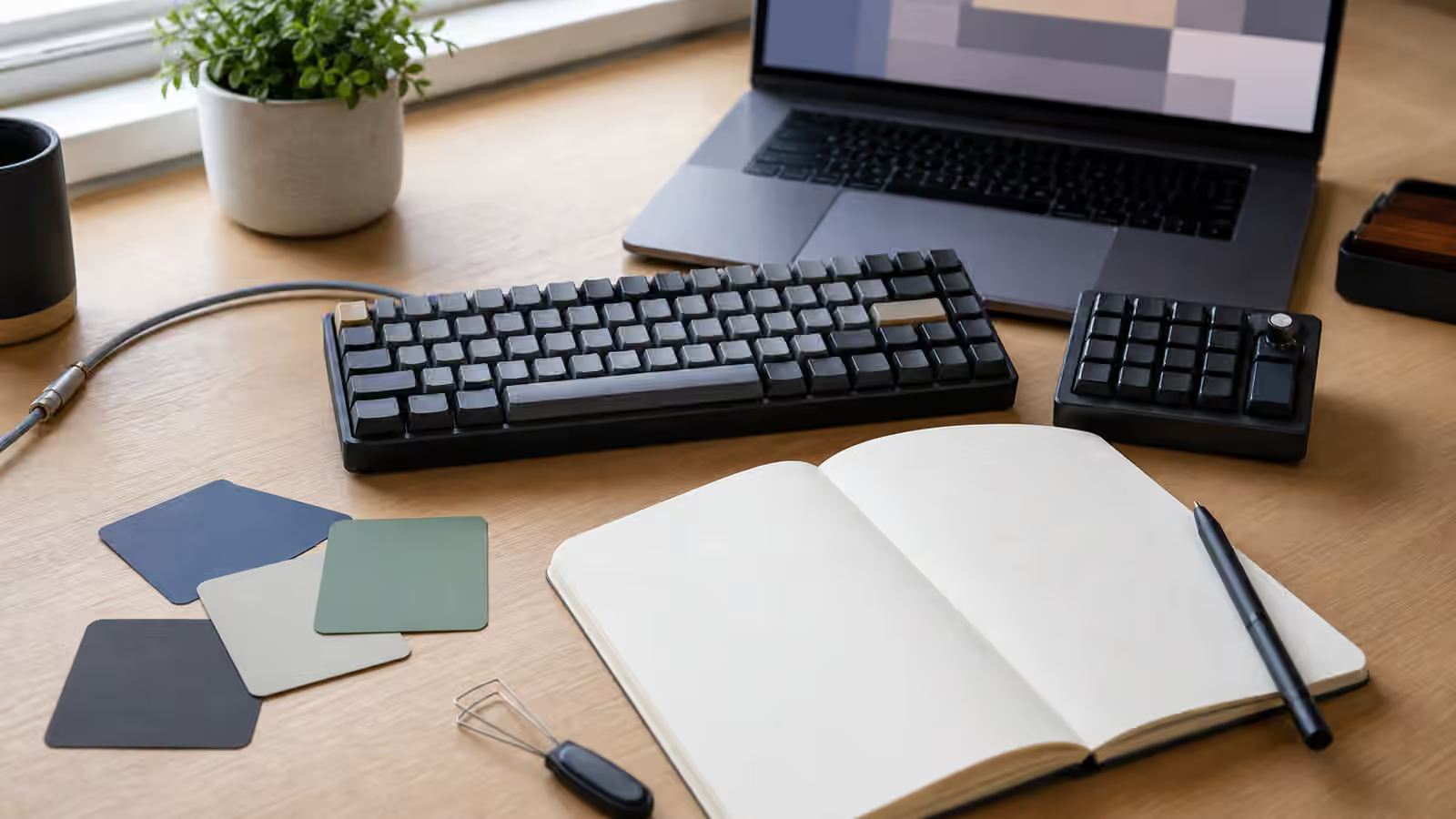
A macro layout should have a written record. It can be a simple diagram, a firmware export, a photo with notes, or a small text file in your own words. The format matters less than the habit. When the keyboard is reset, moved to a new machine, or loaned to someone else, memory alone is a weak backup. Documentation also reveals clutter. If the layout is hard to describe, it is probably hard to use.
Version changes gently. When a macro moves, leave yourself a transition period if the old location was deeply learned. If the key performed a low-risk action, a direct replacement is fine. If the key used to do something consequential, clear it or make it harmless until the old habit fades. This is especially important for people who switch between multiple keyboards. Muscle memory does not update instantly just because a configuration file changed.
Good macro design is quiet. It does not show off during every keystroke. It removes a reach, makes a repeated action less tiring, or brings a trusted command under one comfortable motion. The goal is not to fill every layer. The goal is to make the keyboard disappear a little more during real work.