A mechanical keyboard is simple when it plugs directly into one computer. It becomes more interesting when the desk has a laptop dock, a monitor hub, a USB switch, a KVM, a work machine, a personal machine, and a cable route that disappears behind a monitor arm. Multi-computer setups can be tidy and efficient, but they add a chain between the keyboard and the system receiving each keypress.
That chain matters because keyboards are low-bandwidth devices with high annoyance potential. A tiny delay during switching, a missed wake press, a hub that sleeps too deeply, or a firmware flashing failure can make the whole setup feel unreliable. The fix is rarely glamorous. It usually involves understanding which device is responsible for the connection at each moment and simplifying the path when the keyboard needs special attention.
For basic cable habits, read Keyboard Cables, USB Ports, and Desk Connectivity first. This guide focuses on the next layer: what changes when the keyboard passes through switching hardware, docks, monitor ports, and shared desks.
What each box is doing
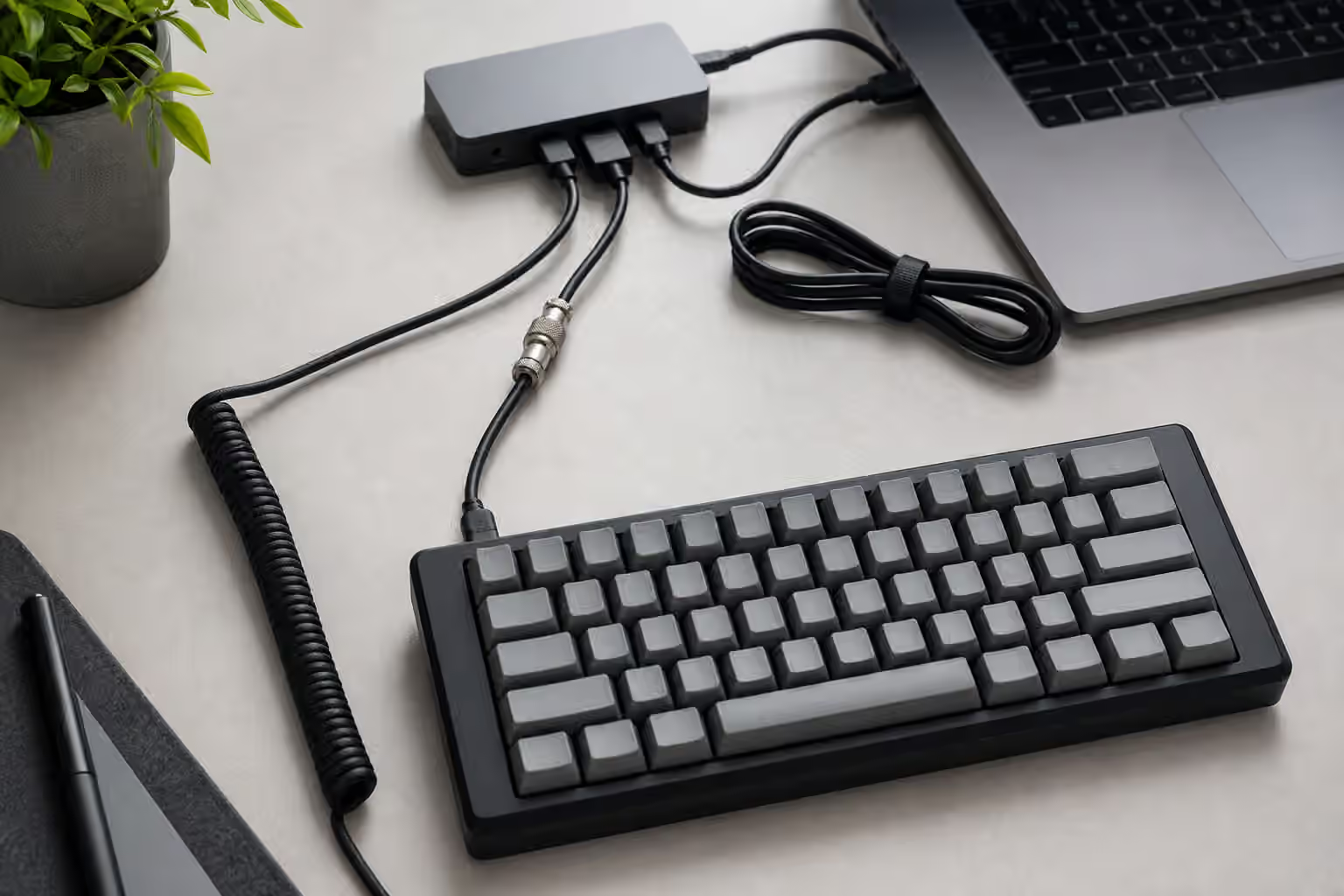
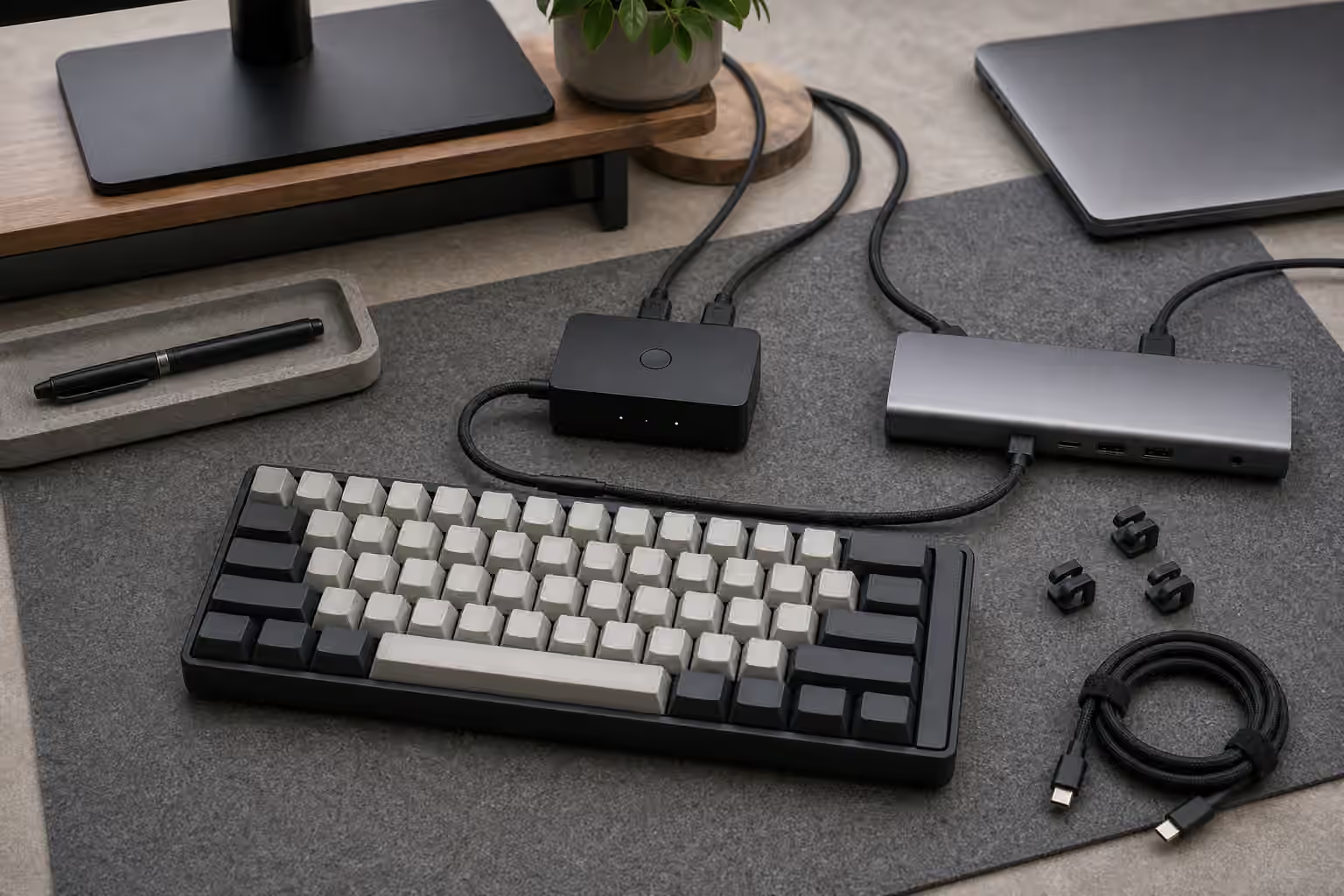
A USB hub expands one computer’s ports. A dock connects several desk devices to a laptop through one cable and may also handle power, displays, audio, and networking. A monitor hub is a USB hub built into the display. A USB switch lets two or more computers share one or more USB devices. A KVM switch shares keyboard, video, and mouse between computers, sometimes with audio and other peripherals attached.
Those devices overlap in real desk setups, but their responsibilities differ. If a keyboard drops out through a monitor, the monitor hub may be the problem. If it works on one computer but not after switching, the USB switch or KVM may be slow to reconnect. If it fails only when a laptop wakes, the dock or operating system power state may be involved. Naming the boxes correctly keeps troubleshooting from becoming a vague complaint about the keyboard.
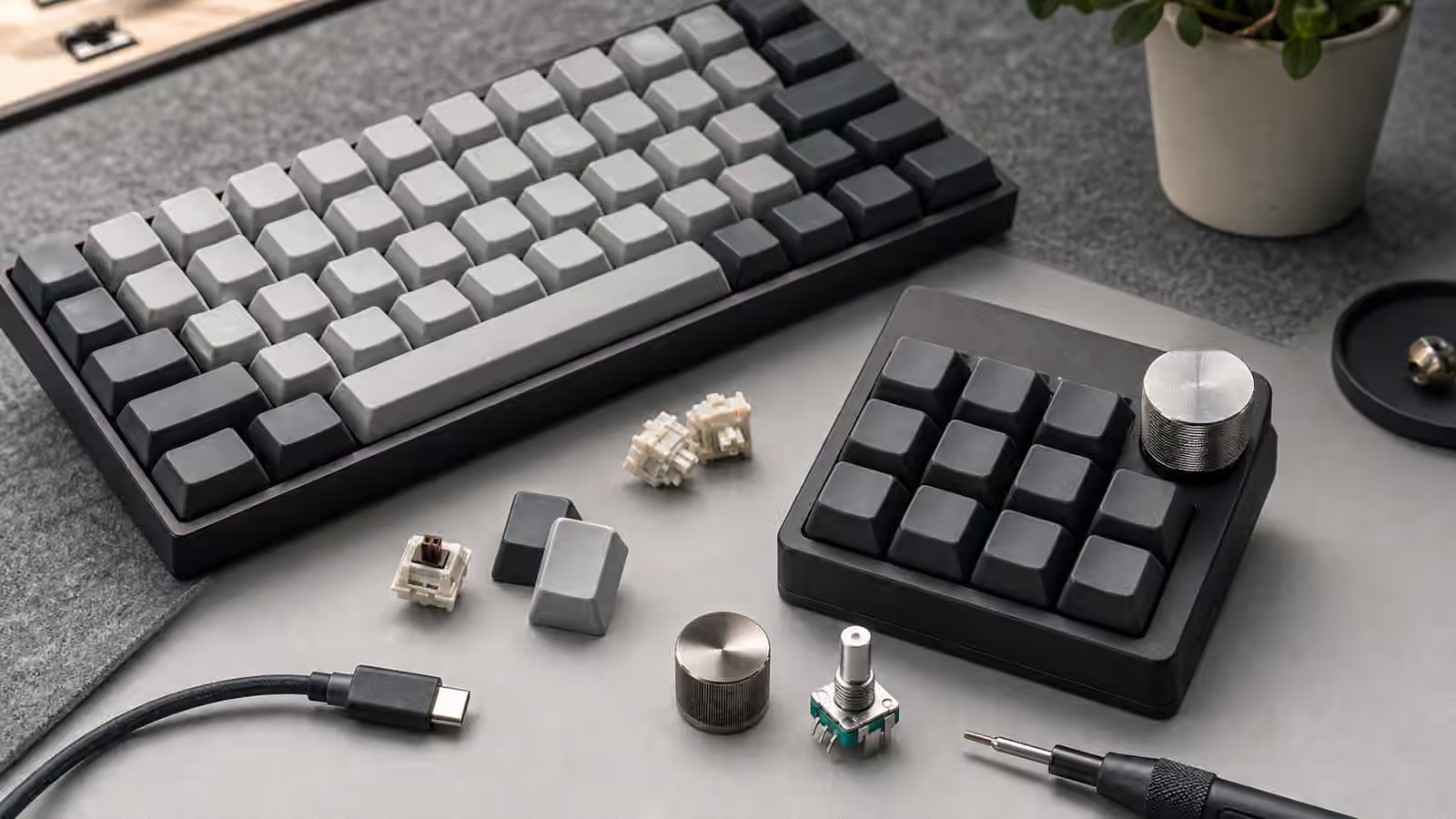
Mechanical keyboards with extra features can make the chain more sensitive. Bright lighting, high polling settings, internal USB pass-through, displays, rotary encoders, and unusual firmware may draw more power or ask more from the host. Most keyboards still work fine through good hubs, but a feature-rich board has more ways to expose a weak link.
Direct connection is the reference test
When a keyboard acts strangely through a dock or KVM, test it directly before changing settings. Use a known-good data cable and plug into the computer itself. Type for a while, wake the computer, sleep it, and try the same keys that failed through the desk chain. If the problem disappears, the keyboard may be fine. If the problem remains, the chain was only revealing a keyboard, cable, or firmware issue.
This reference test saves time. Without it, users often replace switches, reset firmware, or blame an operating system when the actual cause is a hub that does not like the board’s power draw. The Keyboard Troubleshooting guide covers broader symptoms, but direct connection is the anchor for multi-device desks.
Keep the reference cable boring. A short, plain USB data cable is better than a decorative coil, detachable connector, extension, and hub stack when diagnosing. Once the board is stable directly, add the desk devices back one at a time. First the dock, then the switch, then the monitor hub, or whatever order matches your desk. The point is to find the part that changes behavior.
KVM switching and reconnect delay
KVMs and USB switches need time to move devices between computers. Some do it quickly enough that you barely notice. Others take a second or two while the receiving computer sees the keyboard again. That reconnect delay is not always a defect. It is part of how the device presents USB peripherals to different hosts. The question is whether the delay fits your work.
For writing and office tasks, a brief delay may be fine. For fast switching during live production, remote support, streaming, or time-sensitive work, it may be irritating. Test the exact flow. Switch from one computer to another, immediately type into a safe text field, and see whether the first characters appear. Then test modifier shortcuts, lock screens, and wake behavior. Some setups type normally after switching but miss the first key that wakes the machine.
Gaming and high-polling keyboards deserve more caution. A KVM may not support the polling rate or device behavior the keyboard advertises when connected directly. If a board offers a standard mode and a high-performance mode, the standard mode may be more stable through shared hardware. The Keyboard Rollover, Polling Rate, and Latency guide explains why headline speed is only useful when the whole path supports it.
Docks and power behavior
Laptop docks try to make a laptop feel like a desktop, but they also manage power, sleep, displays, and USB negotiation. A keyboard connected through a dock may behave differently depending on whether the laptop is charging, sleeping, closed, or waking from standby. Some docks keep USB ports awake. Others power them down. Some wake reliably from a keypress. Others require the laptop lid, power button, or mouse first.
This is not always under the keyboard’s control. Operating-system power settings, firmware on the dock, laptop model, and port choice can all matter. If a keyboard fails to wake a docked laptop, try another port on the dock, then a direct laptop port, then a powered hub if appropriate. Keep notes. A port that looks identical on the outside may be attached to a different internal controller.
Power budget matters when several devices share one dock. A keyboard with strong lighting, a wireless receiver charging nearby, an external drive, a webcam, and a bus-powered audio interface may crowd a small hub. The keyboard itself may need little power with lighting off and more with lighting bright. If dropouts happen when other devices turn on, reduce the load or move the keyboard to a simpler port.
Firmware tools and flashing
Firmware work should avoid complicated USB paths. When flashing QMK, using a vendor update tool, entering a bootloader, or recovering a board, connect directly to the computer with a known-good cable. KVMs, monitor hubs, and docks may work, but they add failure points during the moment when a stable connection matters most.
The QMK and VIA Firmware Guide covers the software side. The physical habit is simple: use the shortest reliable route for flashing, then return the board to the normal desk chain after it is confirmed working. If the keyboard has a small reset button on the underside or PCB, make sure you can reach it without straining the USB port.
VIA and similar live remapping tools can also be affected by the chain. A board may type through a hub but fail to appear in the configuration tool. That can happen because the tool needs device information that the hub or browser path handles poorly. Direct connection is again the clean test. If direct works and the dock does not, the remapping session should happen direct.
Wireless receivers and shared hardware
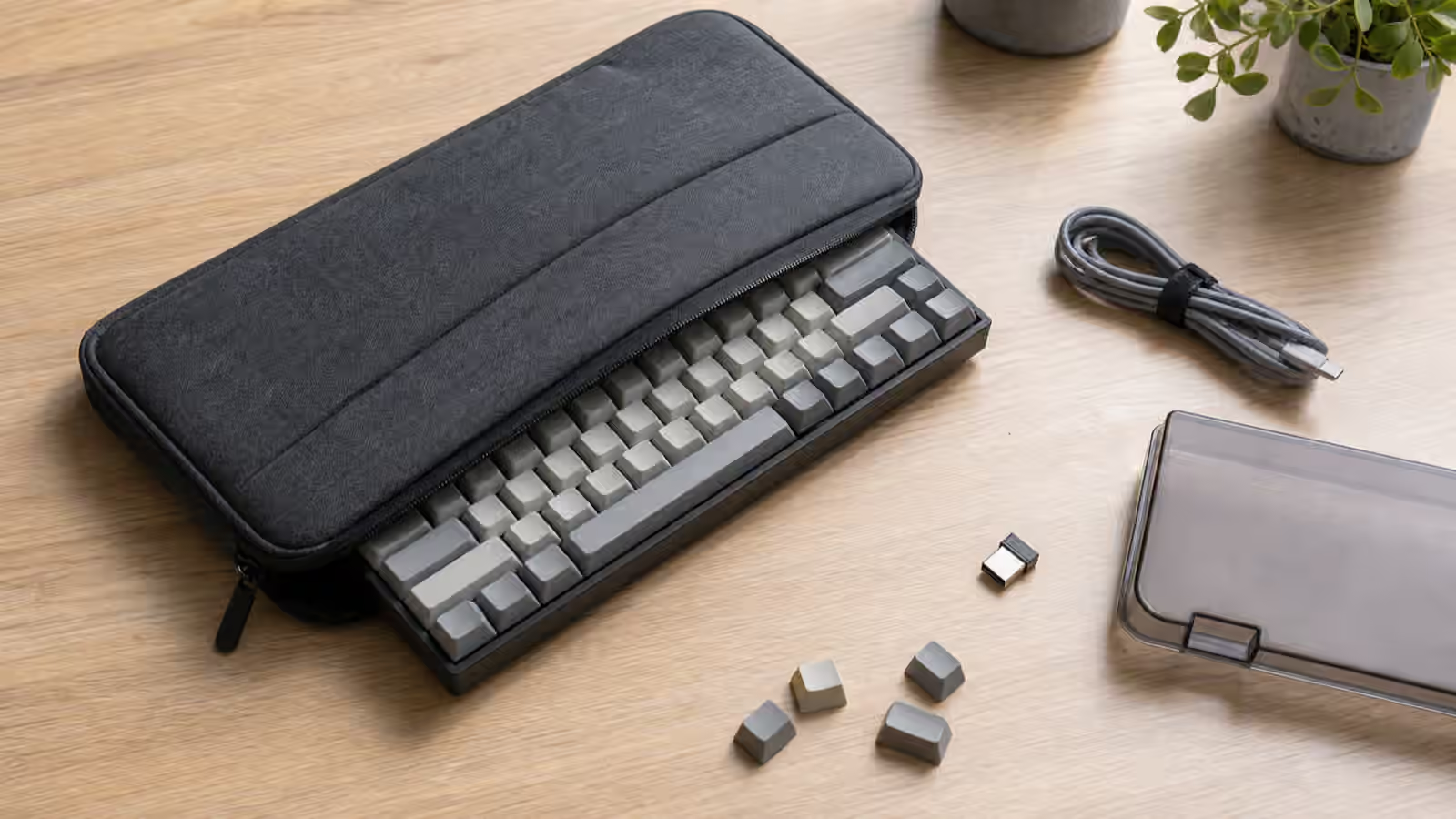
Some users plug a 2.4 GHz receiver into a KVM or dock instead of using the keyboard wired. That can work, but receiver placement becomes important. A receiver hidden behind a metal monitor, under a desk, or inside a crowded dock area may have poor signal. A short USB extension that brings the receiver closer to the keyboard can improve reliability without changing the rest of the setup.
Bluetooth behaves differently because it pairs with a host, not with a KVM’s USB switching in the same way. A multi-device Bluetooth keyboard may switch between computers using its own shortcuts while the monitor input changes separately. That can be convenient, but it also means the keyboard and display switching are no longer tied together. The Wireless Mechanical Keyboards guide explains the trade-offs around Bluetooth, 2.4 GHz, and wired fallback.
For shared desks, wired through a KVM is often easier to understand than Bluetooth profiles, but wireless may reduce cable clutter. Choose the method that the least technical regular user can recover when something goes wrong. A setup that only one person understands will eventually fail at the worst time.
Cable routing and access
Multi-computer desks often become hard to service because the clean cable route hides every connection. Clean is good, but inaccessible is not. Put the switch button, dock, or hub where it can be reached without crawling under the desk. Labeling cables is useful, but if labels would be visible and ugly, use simple physical routing: keyboard cable always enters the left side of the switch, dock cable always exits the back, laptop cable always has the same clip.
Leave a little slack near the keyboard and near the switching box. Tight cable runs pull on ports when the keyboard moves or when the dock shifts. The Keyboard Desk Fit and Ergonomics guide is relevant because the keyboard position should serve the body first. Cable tidiness comes after the board, mouse, and hands are placed correctly.
If you swap keyboards often, consider a front-access USB switch or a short extension at the desk edge. It is better to plug and unplug a replaceable extension than to stress the USB port on a favorite keyboard or the hidden port on a dock. Repeated swaps are not a problem when the connection point is chosen for that job.
A stable multi-computer routine
The best KVM or dock setup is predictable. The keyboard wakes the right computer, switching takes a known amount of time, firmware updates happen through a direct cable, and troubleshooting starts with a reference connection. That routine turns a complex desk into a set of simple paths.
Do not judge the setup only when everything is already awake. Test cold starts, sleep, wake, switching, lock screens, firmware tools, and long typing sessions. If a problem appears, simplify the chain until it disappears, then add parts back carefully. A mechanical keyboard can work beautifully in a multi-computer desk, but the desk has to be treated as part of the input system.
When the path is stable, the hardware fades into the background. One keyboard can serve two machines, the mouse can stay in the right place, the laptop can dock with one cable, and the desk can stay clean without making every keypress dependent on luck. That is the goal: not the most elaborate chain, but the one that lets the keyboard remain boring in the best possible way.