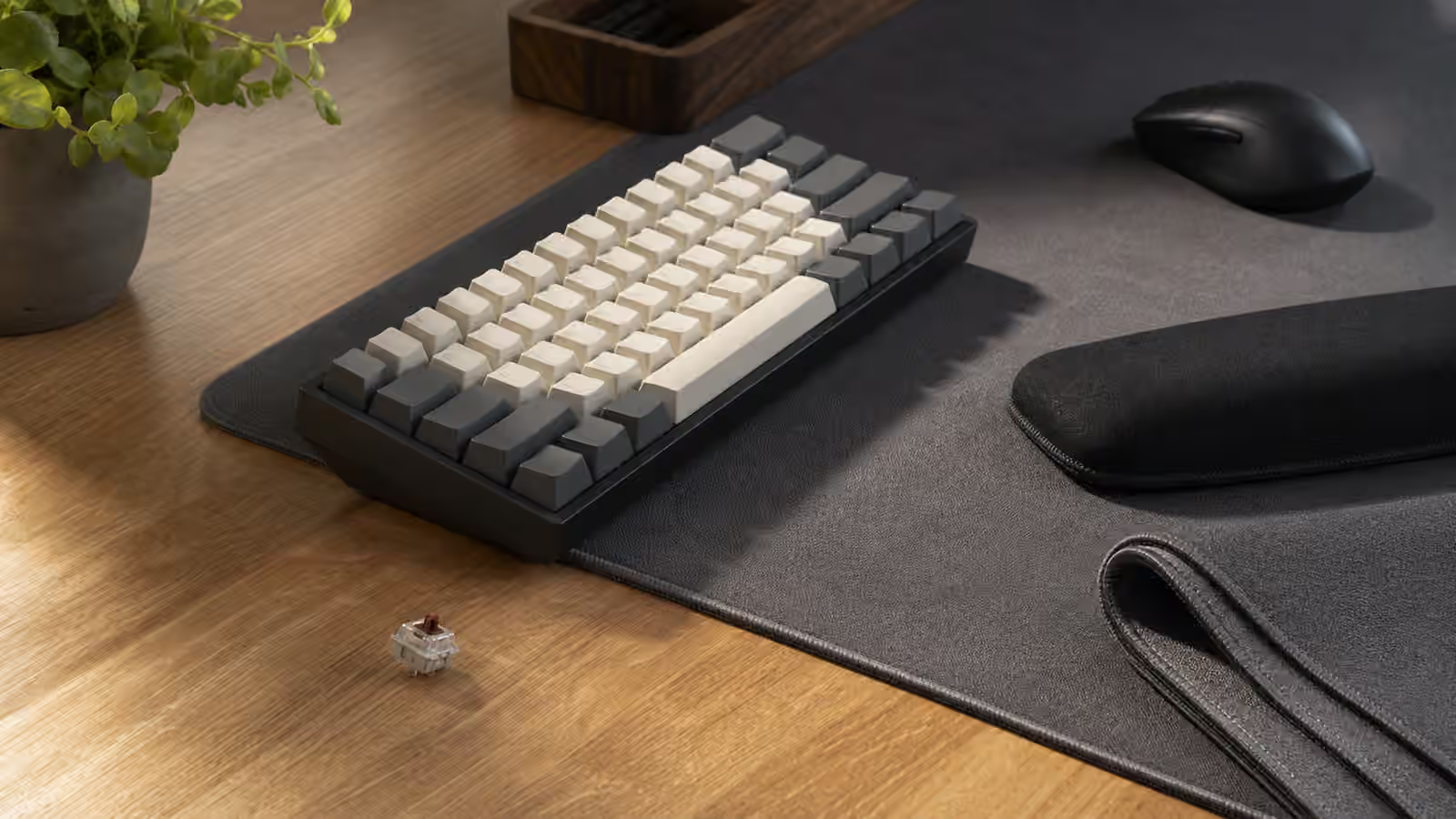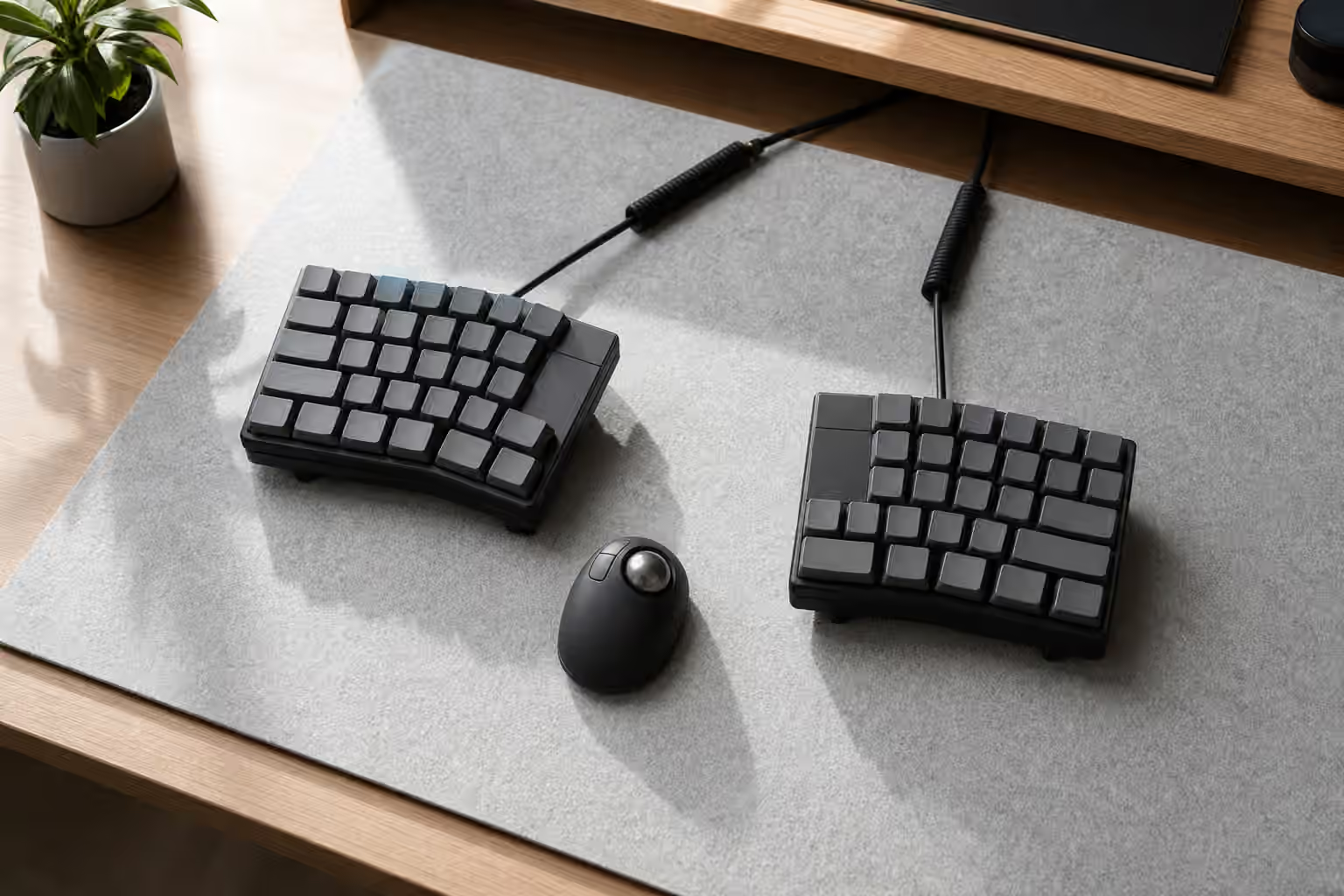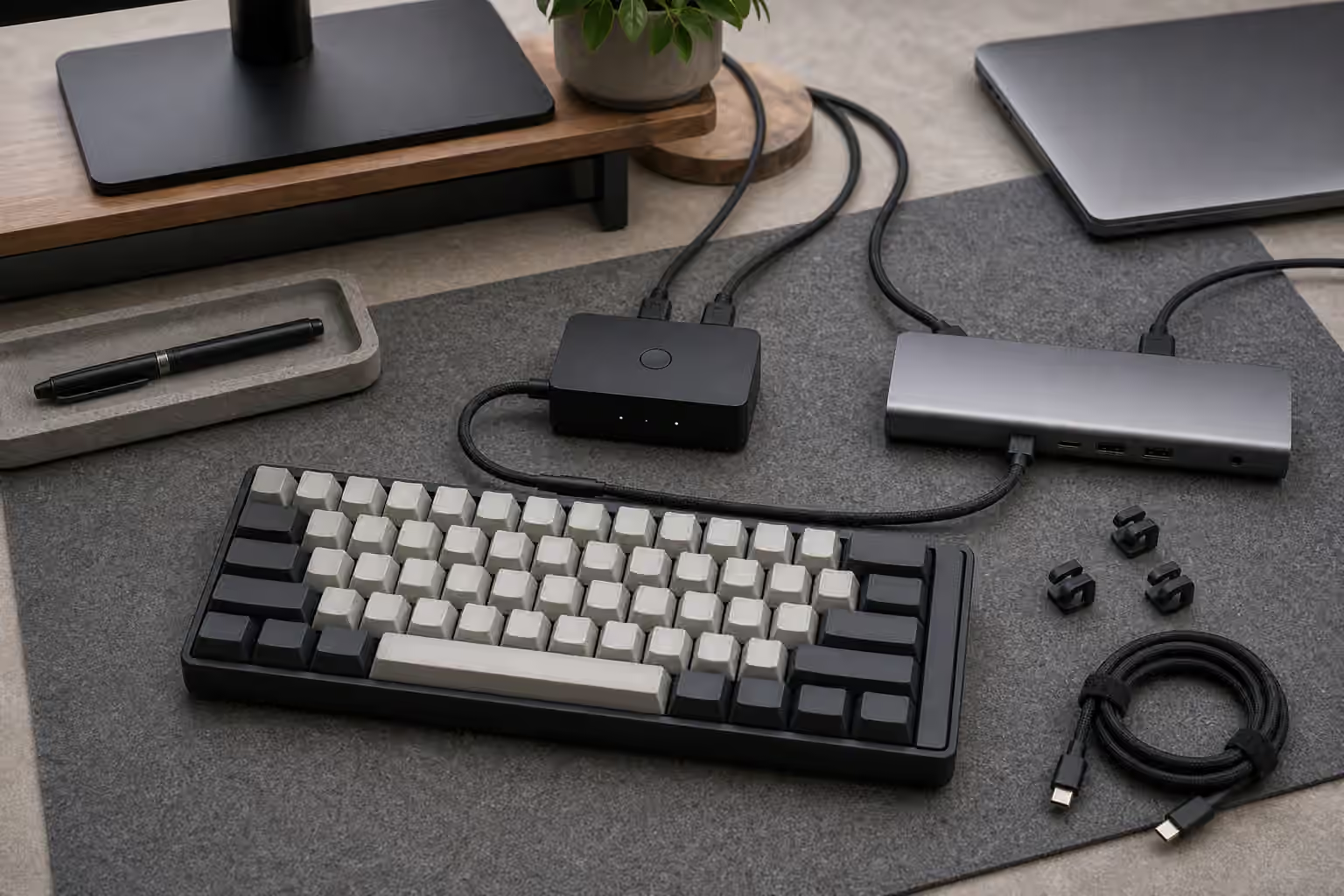
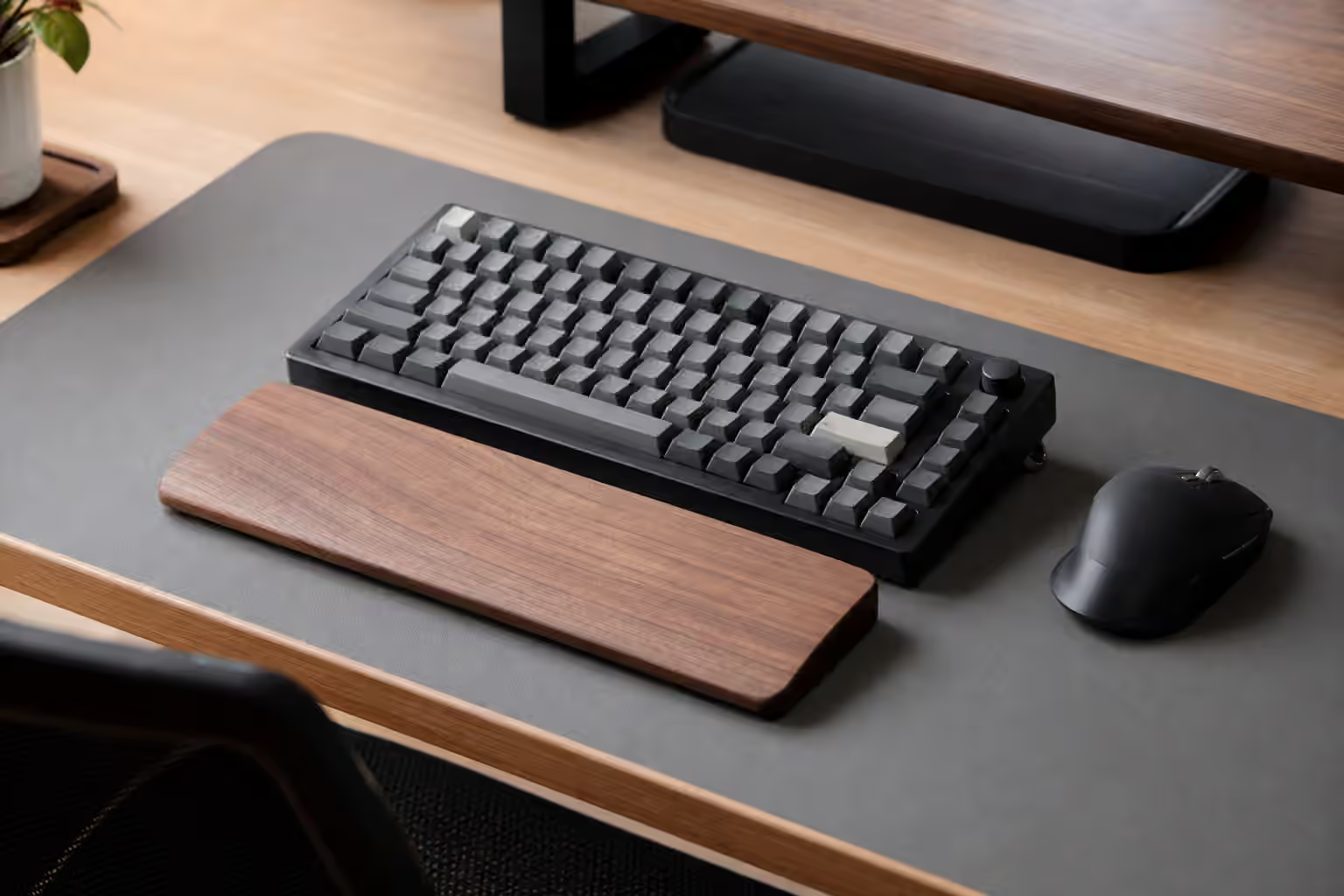
A mechanical keyboard does not live in isolation. It lives on a desk, beside a mouse, under a pair of hands that already have habits. That is why two people can buy the same board and describe it completely differently. One calls it comfortable and controlled. The other calls it tall, loud, awkward, and tiring. The difference is not always the switches or the case. Often it is the fit between the board and the rest of the workstation.
Desk fit is the plain side of keyboard ergonomics. It is not a promise that a keyboard will fix pain, and it is not a replacement for better chair height, breaks, movement, or professional help when symptoms persist. It is the practical work of making the tool less intrusive. The front edge should not make your hands climb a wall. The mouse should not live so far away that every pointer movement becomes a shoulder reach. The angle should help your hands settle instead of forcing your wrists to bend. The surface under the board should support sound and stability rather than making every keypress feel harsher.
If you are still deciding which size board belongs on the desk, start with the Keyboard Layout Guide . Layout width sets the boundaries for everything else. If you already know a normal board shape is not enough, the Split Keyboards and Ergonomic Layouts guide covers the larger geometry changes. This guide stays closer to the everyday desk: the keyboard you already own, the next board you might buy, and the small setup decisions that make typing feel calmer.
Start with the height in front of your hands
The first thing to notice is the front edge of the keyboard. Many full-height mechanical keyboards sit taller than laptop keyboards or slim office boards. Add sculpted keycaps, a thick case, and raised rear feet, and your fingers may approach the keys from a steep angle. Some typists adapt easily. Others end up hovering their hands, planting their palms on the desk, or bending their wrists upward to reach the home row.
The useful test is simple: place the keyboard where you normally use it, rest your hands near the home row, and notice whether your wrists want to bend up before you even start typing. Then lower the rear feet if they are extended. Move the board slightly farther away or closer. Try typing for a few minutes with your forearms supported by the chair arms or the desk, then try again with your hands floating lightly. You are not looking for one universal posture. You are looking for the position where the keyboard stops demanding attention.
Low-profile boards solve this specific problem for some people because they reduce the distance from desk to key top. They are not automatically better, but they can be easier to approach without a wrist rest. The Low-Profile Mechanical Keyboards guide explains the trade-offs in travel, sound, and keycap compatibility. If the only thing you dislike about your current board is height, low-profile may be a better answer than changing switches or filling the case with foam.
Tilt should be chosen, not accepted
Keyboard feet are often treated like a default setting. Many people flip them out because the keyboard looks more familiar that way. On a tall mechanical board, that can raise the back edge enough to make the wrists extend upward. The result may feel decisive for a short typing test and annoying over a long writing session.
Flatter is usually worth trying before buying anything. Put the rear feet down and type normally. If the board has multiple foot heights, compare them over real work rather than a few sentences. A small positive tilt can help some typists find the rows, especially on sculpted keycaps. Too much tilt can make the keys feel like they are climbing away from you. A board with a tall case and SA or MT3-style keycaps may feel completely different from a low case with Cherry-profile caps, even when the switch is the same.
Negative tilt, where the front edge is higher than the back edge, appears in some ergonomic discussions because it can reduce wrist extension for certain desk setups. It is harder to achieve cleanly with a normal keyboard, and it can feel strange if the desk and chair are not arranged for it. Treat it as an experiment, not a rule. A small change in chair height or keyboard distance can matter more than chasing an extreme angle.
Wrist rests are rests, not typing platforms
A wrist rest can make a tall board easier to live with, but it can also become a bad habit if it pins the hands in place while typing. The name is slightly misleading. For many people, the rest is most useful between bursts of typing, when the hands pause. During active typing, the hands often move better when they float lightly and let the fingers travel without dragging the wrists across a pad.
The height of the rest matters more than the material. A rest that is too high can push the wrists upward. A rest that is too low may do almost nothing. A soft foam rest can feel comfortable at first but sink unevenly. A firm wood or resin rest can offer consistent height but feel unforgiving if you lean heavily into it. Leather, fabric, silicone, and gel all change surface feel, but the main job is alignment. The rest should meet the keyboard’s front edge without creating a new step for your hands to climb.
There is also a sound side. A wrist rest can keep palms from thudding directly on the desk, and it can visually anchor a setup. It will not fix switch harshness, stabilizer rattle, or case resonance. If the board is loud enough to bother the room, pair desk-fit changes with the Low-Noise Keyboard Setup guide. Comfort and sound often share the same desk, but they are different problems.
Width decides mouse reach
Keyboard width is one of the clearest desk-fit variables because it changes where the mouse can sit. A full-size board pushes the mouse to the right for most right-handed users. That reach may be harmless for short sessions and irritating during long days of mixed typing and pointing. The numpad may be essential if you enter numbers constantly. If it is mostly decorative, it is costing prime desk space every hour.
TKL, 75 percent, and 65 percent boards are popular partly because they bring the mouse closer without asking for a dramatic relearn. A 75 percent keeps the function row and arrows in a compact block. A 65 percent drops the function row but keeps arrows. Both can make the desk feel less spread out while preserving the core typing experience. A 60 percent goes further and can be excellent for mouse-heavy work, but only if you are comfortable putting arrows, function keys, and navigation on layers.
Left-side numpads and separate numpads are worth remembering. If number entry matters, the choice is not always full-size or nothing. A separate numpad can sit on the left, move out of the way when not needed, or come forward only for spreadsheet sessions. This can be more flexible than carrying a full-size board’s width all day. Firmware can help too, especially on compact keyboards, because layers let common navigation keys come closer to the home row. The QMK and VIA Firmware Guide is useful when physical reach and key placement start to overlap.
The desk surface changes feel and sound
A bare desk is part of the keyboard. It can amplify vibration, make the board slide, sharpen bottom-out, and make a lightweight case feel cheaper than it is. A desk mat is a simple fit tool because it gives the keyboard a stable surface and softens the contact between case and desk. It also creates a consistent area for the mouse, which matters if you are pulling the pointer closer after switching to a smaller layout.
The mat does not need to be thick or decorative. It needs enough grip to keep the board still and enough surface area to support the keyboard and mouse without crowding either one. Very soft mats can make a keyboard feel slightly muted or unstable if the case feet sink in. Very thin mats may control slide without changing much sound. Like foam inside a case, the right amount is the amount that solves the actual problem.
Desk depth matters too. A shallow desk can force the keyboard too close to the front edge, leaving nowhere for the forearms to settle. A deep desk can make the monitor comfortable but tempt the keyboard to drift too far away. The board should sit where typing does not require reaching forward through the shoulders. If moving the keyboard to a better spot ruins the monitor distance, the desk layout is the issue, not the switch choice.
Keycaps and switches affect effort
Desk fit is not only geometry. Keycaps and switches change how much effort the hands spend while using that geometry. Tall keycaps can make a high board feel higher. Flat caps can feel quick but give less row guidance. Deeply sculpted profiles can help the fingers find home position, but they can also make a compact board feel bulkier. The Keycaps Guide is worth reading with comfort in mind, not only aesthetics.
Switch weight is similar. A switch that feels satisfying for a ten-minute sound test may feel tiring during a full day if it asks for more force than your hands want to give. A very light switch can reduce effort but increase accidental presses if you rest heavily on the keys. Tactile switches can provide confirmation, which may reduce hard bottoming for some typists, but a sharp bump can feel busy if you type quickly. Linear switches can feel smooth and low-effort, but they may invite heavy bottom-out if the spring weight does not match your habits.
The best test is ordinary work. Type a long email, edit a document, move between keyboard and mouse, and notice when you tense up. A switch tester can tell you broad preferences, but it cannot show how a keyboard fits into your desk rhythm. If your board is hot-swap, the Complete Switch Guide can help you choose a small experiment instead of replacing everything at once.
Split boards are for geometry problems
Some desk-fit problems cannot be solved by a wrist rest or a smaller rectangle. If your hands naturally want to sit farther apart, if the mouse belongs between your hands, or if the inward angle of a normal board always feels cramped, a split keyboard may be the right category to investigate. A split board changes the relationship between shoulders, elbows, wrists, keyboard halves, and pointing device. That is a larger change than lowering keyboard feet.
It is also a larger commitment. Split boards may involve new layers, thumb keys, tenting, cable routing, and a learning period. That is why it helps to name the problem before switching. If the problem is mouse reach, a TKL or 65 percent board may be enough. If the problem is keyboard height, low-profile may be enough. If the problem is that both hands are being pulled toward the center of the desk, then split geometry starts to make sense.
Make one change at a time
The cleanest way to improve desk fit is to make one small change, use it for real work, and then decide what changed. Lower the keyboard feet for a day. Move the mouse closer after borrowing a smaller board. Try a desk mat before opening the case. Add a wrist rest and notice whether it supports pauses or encourages leaning. Swap to a lower keycap profile before concluding that the entire keyboard is wrong.
This patient approach matters because keyboard hobby advice often stacks fixes on top of each other. A new layout, new switches, new keycaps, a wrist rest, a desk mat, foam, and a different chair height can all change the experience at once. Then the board may feel better, but you will not know why. Good desk fit is quieter than that. It comes from removing the obvious irritations until the keyboard becomes easy to forget.
A well-fitted mechanical keyboard still has character. It can sound deep, look beautiful, and feel distinct under the fingers. The difference is that it no longer asks your hands and desk to work around it all day. The board sits at a usable height, the angle makes sense, the mouse is close enough, the surface is stable, and the parts match the way you actually type. That is when a keyboard stops being a desk object you admire and becomes a tool you can use without negotiating with it.