A keyboard cable looks like the least interesting part of a mechanical keyboard until it becomes the problem. Then it is suddenly responsible for dropouts, missed flashes, cramped desk routing, a stressed USB port, or a beautiful board that cannot sit where your hands want it. Wired keyboards are simple in principle, but the small details around cable quality, hub behavior, connector stress, and desk layout decide how simple they feel every day.
Wireless boards deserve their own decisions, and the Wireless Mechanical Keyboards guide covers Bluetooth, dongles, batteries, and latency. This guide is for the wired side: USB-C, USB-A adapters, coiled cables, detachable connectors, hubs, docking stations, and the quiet maintenance habits that keep a board reliable. A cable does not need to be expensive or decorative. It needs to carry data cleanly, fit the desk, and avoid putting mechanical stress on the keyboard’s port.
Data cable first, decoration second
Many USB-C cables can charge devices, but not all of them are good data cables. Some cheap or bundled cables are power-only, which means a keyboard plugged in with them may do nothing at all. Others technically carry data but behave poorly through hubs or under movement. When a wired keyboard fails to appear, the cable is the first boring thing to test because it is also one of the easiest things to replace.
For a mechanical keyboard, bandwidth needs are modest. A keyboard is not asking for the same data rate as an external drive. Reliability matters more than headline speed. A short, well-made USB data cable is usually better than a long decorative cable of uncertain construction. If your board uses RGB lighting, a display, or an internal hub, power delivery may matter more, but most keyboards still live comfortably within ordinary USB limits when the cable and hub are decent.
The most useful spare is a plain known-good cable. Keep one around that you have used successfully for firmware flashing or steady typing. When a board misbehaves, that cable becomes your reference. Without it, troubleshooting turns into guessing between keyboard, computer, hub, dock, operating system, and firmware. The Keyboard Troubleshooting guide covers the broader diagnostic path, but a cable swap is often the fastest first move.
USB-C ports and connector stress
USB-C made keyboard cabling easier because the plug is reversible and common, but the port is still a small mechanical part mounted to a PCB or daughterboard. Repeated sideways force can loosen a connector, especially if a heavy cable hangs from the board or a coiled cable pulls against the port. A solid metal keyboard can make this worse because the case does not flex much when the cable is bumped. The stress goes into the connector.
A good desk route gives the cable a relaxed path. The cable should leave the keyboard without a sharp bend, then have enough slack to absorb small movements. If the keyboard moves when you clean the desk or shift the mat, the cable should move with it rather than tugging at the port. Cable ties, under-desk clips, and monitor-arm routing can help, but only if they leave a little service loop near the keyboard. Perfectly tight routing looks clean and fails poorly.
Some custom keyboards use daughterboards so the USB port is separate from the main PCB. That can reduce stress on the main board and allow flexible mounting systems to move without forcing the connector. The Keyboard PCBs and Hot-Swap Sockets guide explains that internal architecture. From the outside, the habit is the same: do not use the cable as a handle, and do not let a heavy coil pull the port sideways all day.
Coiled cables and detachable connectors
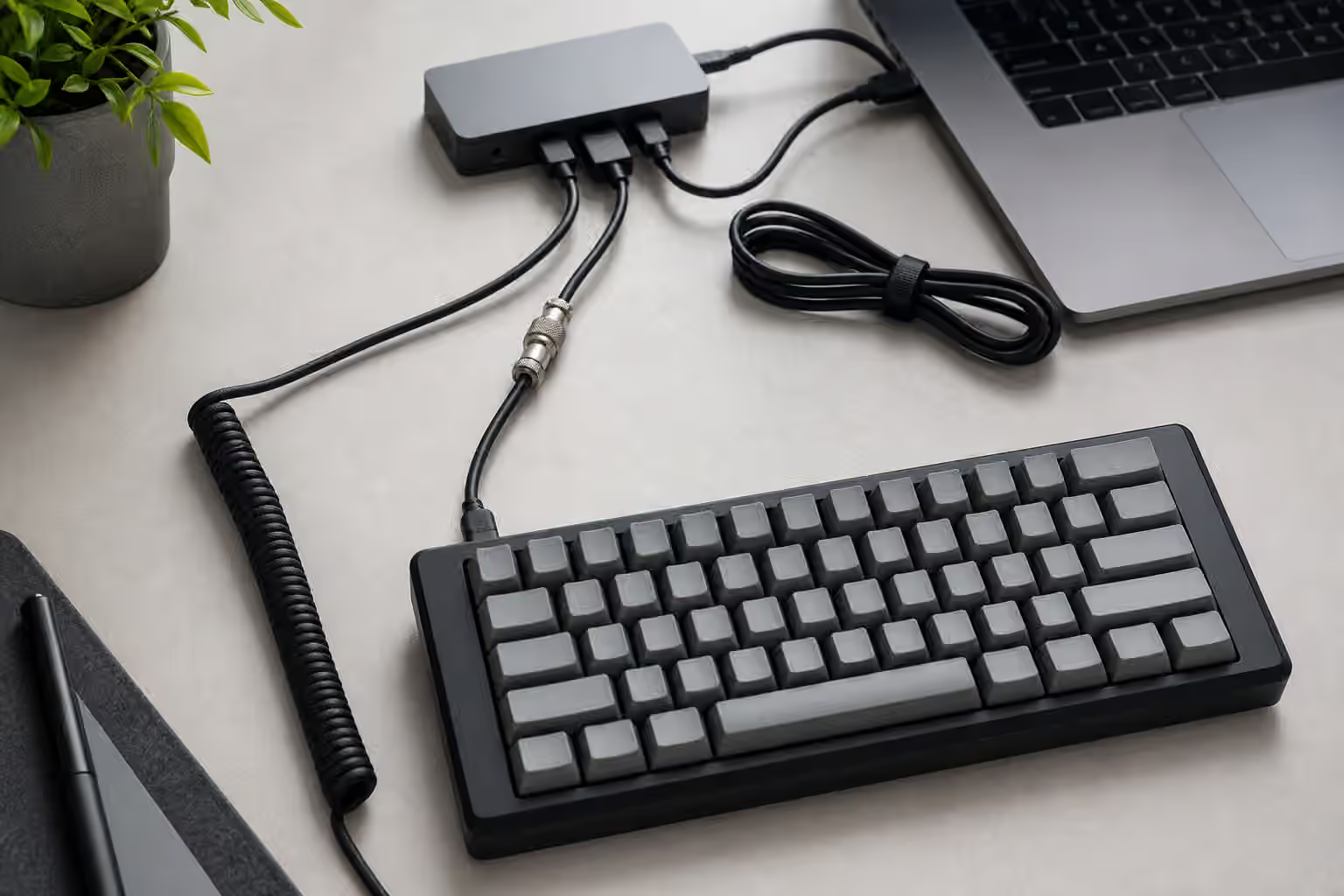
Coiled cables became part of the custom keyboard look because they frame the board and add a little ceremony to the desk. They can be perfectly functional, but they are not automatically better. A coil adds length and resistance compared with a short straight cable. A detachable connector adds another contact point. Most good setups handle that without issue, but every extra piece is another place where a flaky connection can begin.
The practical question is length. A moderate coil near the keyboard with a reasonable straight run to the computer is usually fine. A very long cable, a large coil, an aviator-style connector, and a hub chain may work one day and fail during firmware flashing the next. If a keyboard disconnects during heavy RGB use or refuses to enter bootloader reliably, simplify the path before blaming the board. Use a short direct cable, then add decorative pieces back one at a time.
Detachable metal connectors can be convenient if you switch boards often, but they should be treated as cable connectors, not hot-swap toys to snap in and out constantly under tension. Align them cleanly, avoid twisting, and keep dust out of the contacts. If the connector is mostly decorative and the board rarely moves, it is harmless. If you travel with the keyboard, a simple straight cable is usually less fuss.
Hubs, docks, and monitor USB ports
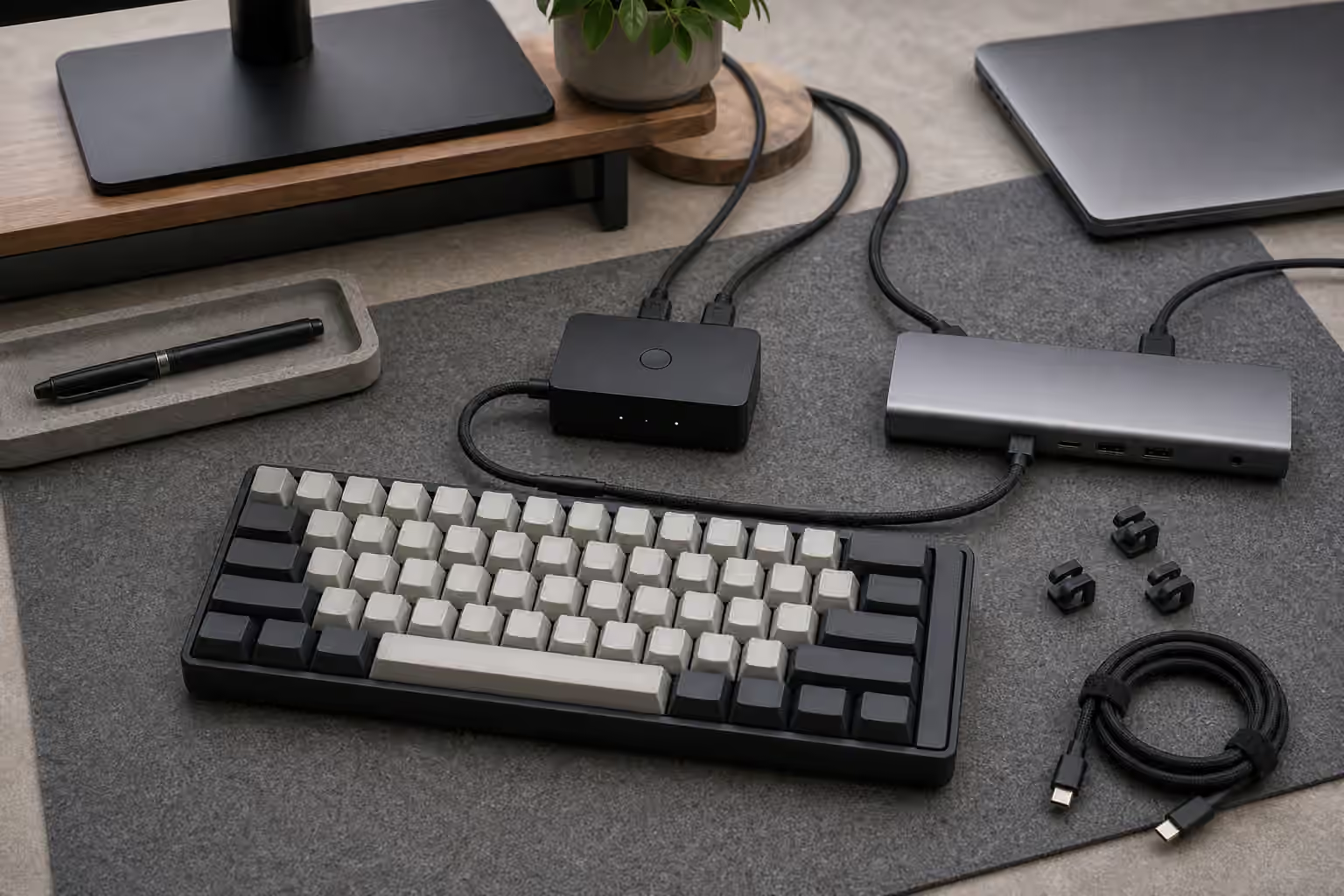
Many desk setups route keyboards through monitors, USB hubs, laptop docks, or KVM switches. That can be tidy, but it also moves troubleshooting away from the keyboard. A hub may sleep aggressively. A monitor port may behave differently after the display wakes. A dock may share power across several devices. A KVM may introduce a delay while switching computers. None of this means hubs are bad. It means the keyboard’s path to the computer matters.
For normal typing, a good powered hub is usually fine. For firmware flashing, direct connection is safer. Flashing a keyboard is a short, sensitive operation where a dropout can create avoidable recovery work. If you are updating firmware through QMK Toolbox or a vendor utility, plug the board directly into the computer with the known-good cable. The QMK and VIA Firmware Guide is the better reference for the software steps, but the physical rule is simple: reduce the chain when the board is being rewritten.
KVM users should test their keyboards during real switching, not only while sitting on one computer. Some keyboards reconnect gracefully. Others take a moment. Boards with unusual firmware features, high polling settings, or wireless dongles can be more sensitive. The Keyboard Rollover, Polling Rate, and Latency guide explains performance specs, but stability at your desk is more important than a number on a product page.
Cable routing as part of desk fit
Cable routing affects comfort more than people expect. A cable that exits toward the mouse can steal space from the mouse path. A thick coil may push the keyboard farther forward than your wrists prefer. A cable trapped under a desk mat can make the board sit unevenly. These are small annoyances, but they are exactly the kind that make an otherwise good keyboard feel awkward.
Start with the keyboard position, not the cable shape. Put the board where your shoulders, arms, and mouse reach feel natural, then route the cable around that position. The Keyboard Desk Fit guide covers height, angle, and reach in more detail. Once the board is placed correctly, decide whether the cable should run left, right, straight back, or through a desk grommet. The cable serves the typing position, not the other way around.
If you use multiple keyboards, leave the desk route flexible. A 65 percent board with a rear-left port and a split keyboard with two halves do not want the same cable path. A small USB extension or a hub mounted near the desk edge can make swaps easier, but it should still be reliable enough that you are not diagnosing the setup every time you change boards.
Travel and storage habits
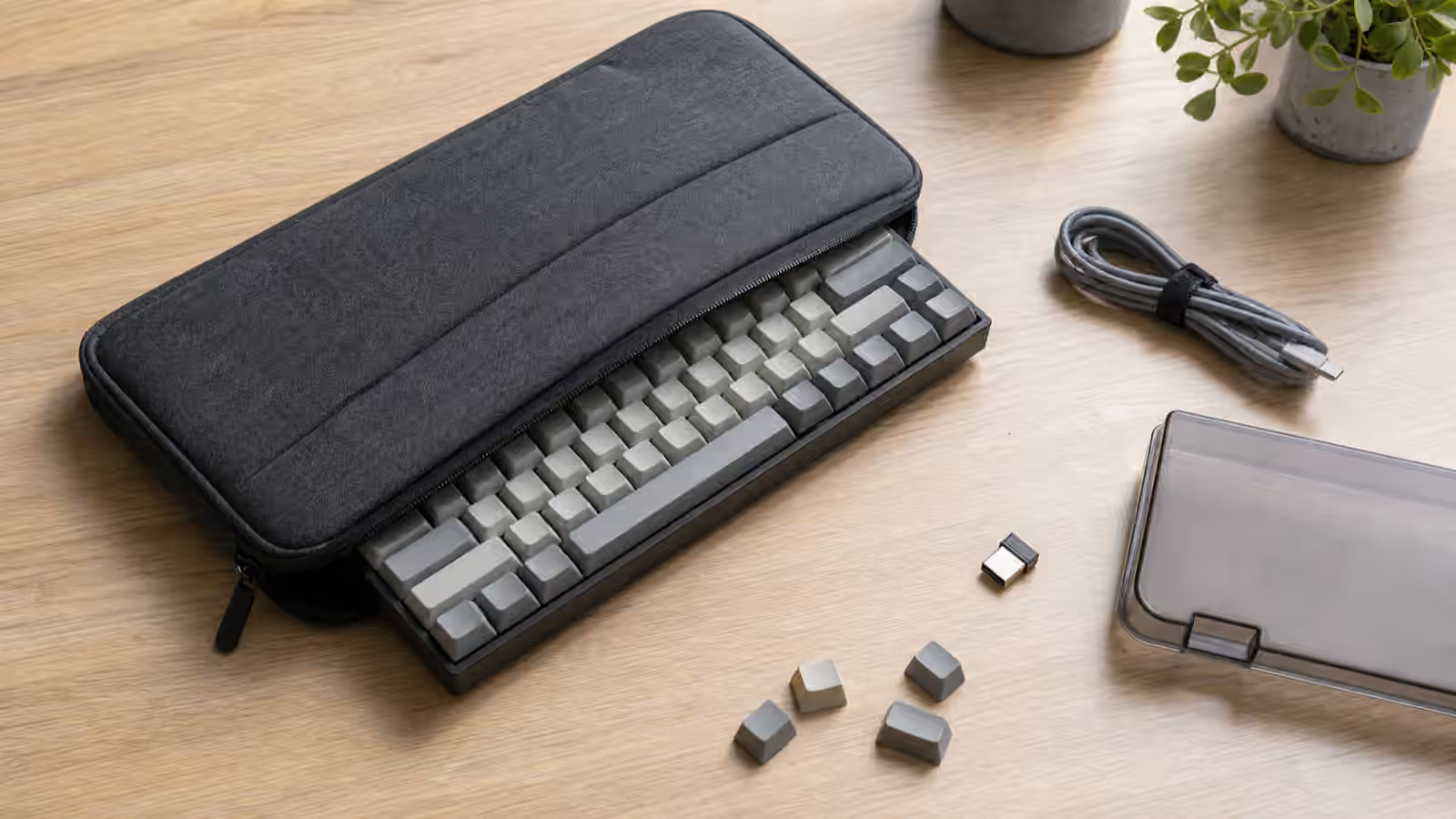
Travel is where ports get hurt. A keyboard tossed into a bag with the cable still attached is asking the connector to absorb every bump. Unplug the cable before packing the board. If the cable is coiled or has a detachable connector, pack it so the connector cannot scratch keycaps or press against the case. The Keyboard Travel and Storage guide covers cases and packing, but the cable rule is short: separate stress from the port.
At home, storage matters less dramatically but still helps. Do not wrap a cable tightly around the keyboard, especially if that pulls sideways on the connector. Do not leave a heavy cable hanging off the back of a board stored vertically. If a cable develops a kink near the plug, retire it from keyboard use before it becomes an intermittent fault that looks like a PCB problem.
Cleaning is also part of cable maintenance. Dust around a USB-C port can prevent a plug from seating fully. A connector that feels loose may simply not be inserted all the way, or it may be fighting debris. Use gentle inspection before force. The port is not a place to prove strength.
When wired still makes sense
Wireless setups are convenient, but wired keyboards remain useful because they are predictable. A wired board has no battery to manage, no pairing state to forget, and no radio environment to blame. For gaming, firmware work, shared desks, and long writing sessions, that boring reliability is valuable. The cable is the price of that reliability, so it deserves enough attention to stay boring.
Choose a real data cable, keep a known-good spare, avoid sharp bends at the port, simplify the path for firmware flashing, and let the desk layout decide the routing. A cable will never be the most exciting keyboard part, but it can quietly protect every other choice you made. When the connection is stable and the board sits exactly where your hands expect it, the cable has done its job.