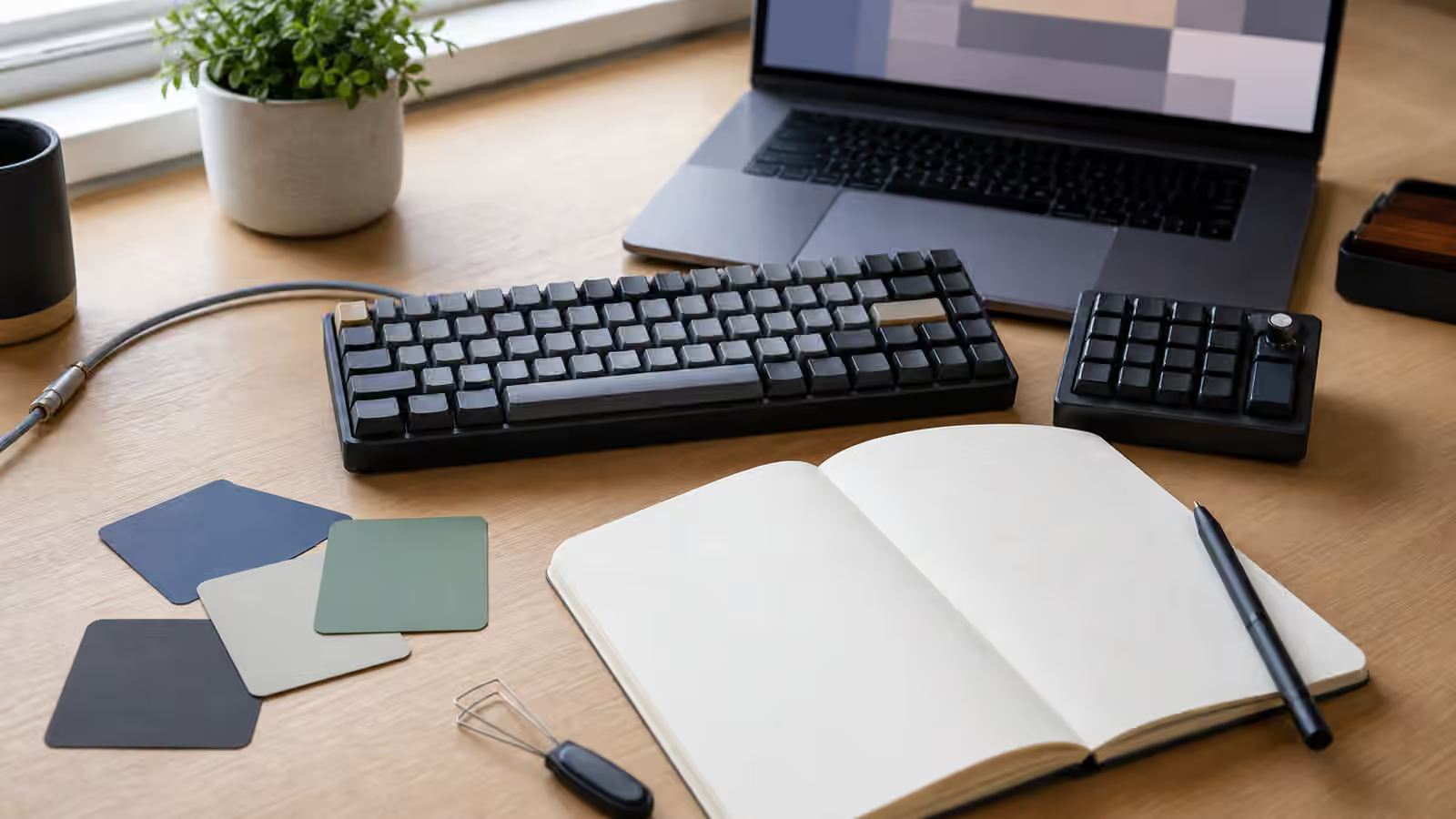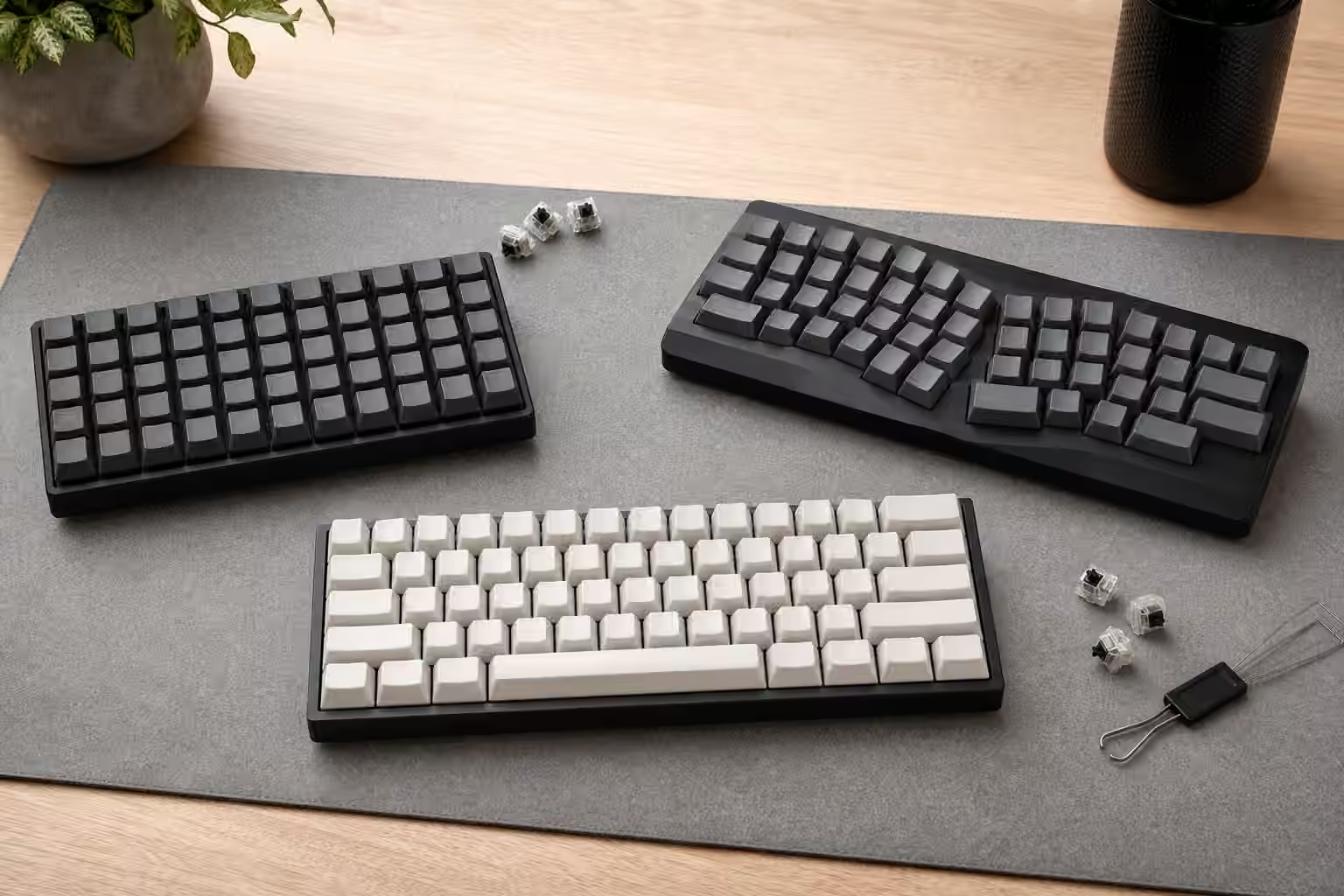
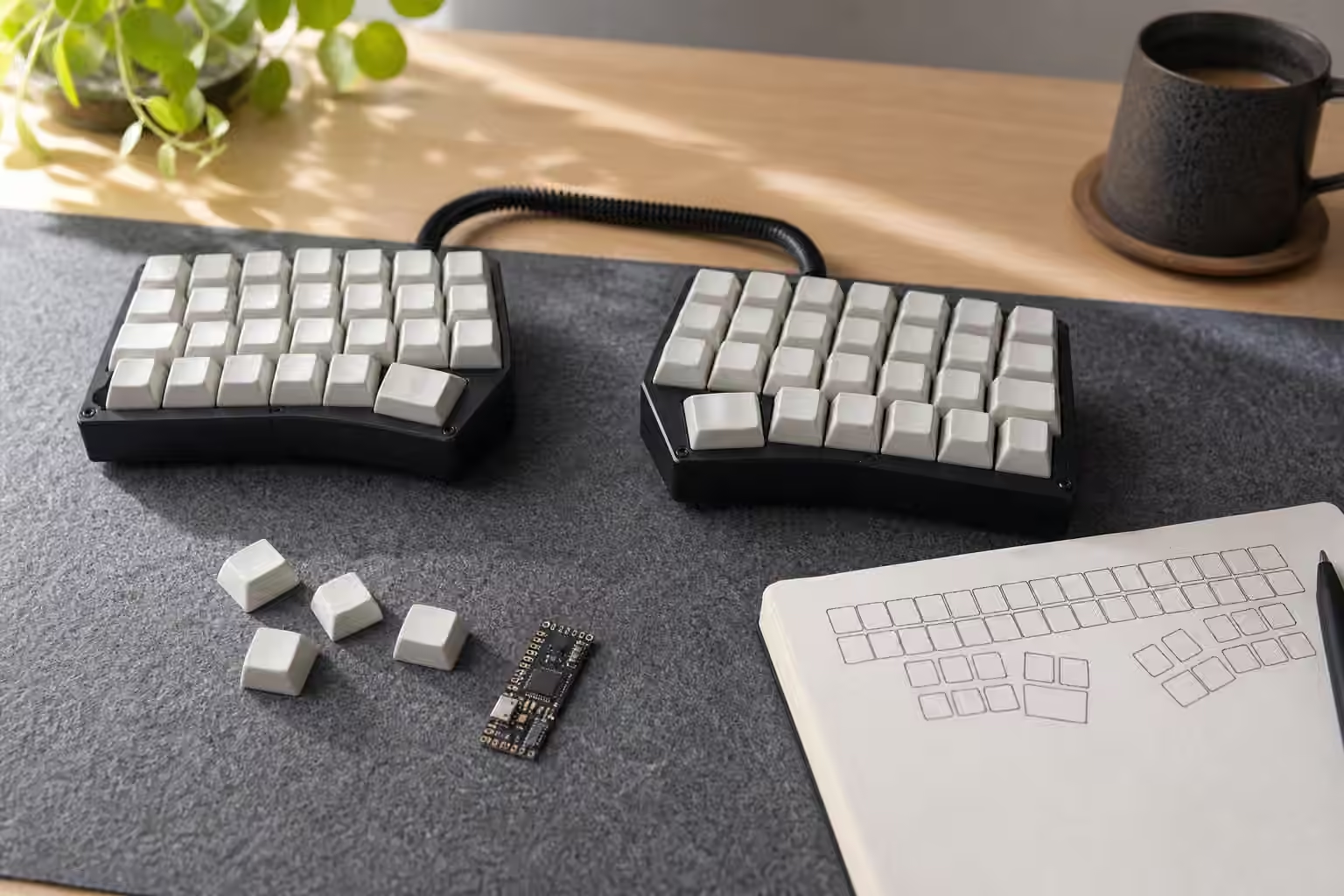
Home-row mods are one of the ideas that make compact mechanical keyboards feel larger than they look. Instead of dedicating wide corner keys to Control, Shift, Alt, Command, or Super, the firmware lets ordinary letter keys behave one way when tapped and another way when held. Tap the key and it sends the letter. Hold it while pressing another key and it becomes a modifier. In a well tuned layout, the strongest fingers get useful modifier access without making the hands reach to the edges of the board.
The idea is elegant, but it is not automatically comfortable. A home-row mod is a small timing agreement between your hands and the keyboard. If the timing is too eager, normal words turn into accidental shortcuts. If the timing is too slow, shortcuts feel sticky and uncertain. If the layout asks one finger to do too many jobs, the firmware may be technically correct and still feel unpleasant. Home-row mods work best when they are treated as an ergonomic design problem rather than a trick copied from someone else’s keymap.
If you are new to layers, start with Compact Keyboard Layers for Daily Work before changing modifier behavior. If the board uses QMK, VIA, Vial, ZMK, or another programmable system, the QMK and VIA Firmware Guide gives the broader context. This guide focuses on the judgement around hold-tap keys: what belongs on the home row, how timing feels, and how to test a map without teaching your hands chaos.
Why home-row mods appeal to compact keyboard users
Compact keyboards remove keys to bring the hands closer together, free mouse space, and reduce desk reach. That physical gain often pushes work into firmware. Arrows move to a layer. Function keys move to a layer. Navigation keys move to a layer. Modifiers can stay on the bottom row, but on very small boards that row may be crowded, unfamiliar, or far from the strongest fingers. Home-row mods offer a different trade. They keep modifiers close, at the cost of asking each home key to do two jobs.
The most common version puts mirrored modifiers under the resting fingers. A key under one index finger may become Control when held. A middle finger key may become Alt. A ring finger key may become Shift or a system modifier. The exact map depends on operating system, shortcut habits, handedness, and the board’s thumb keys. The value is not the diagram itself. The value is that common shortcuts no longer require a pinky stretch to the corner of a small keyboard.
This can be especially useful on split boards, where thumb keys already handle layer access and Space, Enter, Backspace, or Escape. The home row can carry modifiers while thumbs carry layers. The hands stay centered and the fingers avoid repeated sideways reach. The Split Keyboards and Ergonomic Layouts guide covers the physical shape of that decision. Home-row mods are the firmware side of the same comfort question.
Timing is the real feature
A hold-tap key needs to decide what you meant. If you tap A, you want A. If you hold A and press C, you may want Control-C. The firmware makes that decision through timing rules and interruption rules. It may look at how long the key was held, whether another key was pressed during the hold, whether the key was released before the other key, or whether a special flavor of hold-tap has been assigned.
This is why two layouts with the same visible keymap can feel different. One map may treat a quick roll from S to T as a typed word. Another may interpret the same motion as a held modifier and produce nonsense. Fast typists notice this quickly because ordinary typing contains many overlapping key presses. The letters do not always press and release in a neat sequence. A home-row mod has to tolerate real typing, not the idealized typing shown in firmware diagrams.
The tapping term, sometimes called a tapping timeout or tapping window, is the most obvious setting. A short window makes holds register quickly but can punish slow deliberate taps. A long window protects taps but can make shortcuts feel delayed. There is no universal number because hands differ. Some people type with clean releases. Some roll across the home row. Some hold keys a little longer while thinking. The right value is the one that makes your normal prose boring and your shortcuts intentional.
Put modifiers where the fingers can succeed
The home row is not a flat field of equal keys. Index and middle fingers are stronger and more independent than ring and pinky fingers. A modifier used constantly may be pleasant under an index finger and miserable under a ring finger. A rare modifier can live in a weaker position because it does not carry much daily load. This is one reason copying a popular layout can fail. The person who designed it may use different shortcuts, a different keyboard, or a different operating system.
Common editing shortcuts deserve special attention. Control, Command, or Super combinations for copy, paste, undo, save, window movement, and browser tabs are used often enough that a bad position becomes obvious. Shift is more complicated because it is used both for capital letters and shortcuts. Some users keep Shift on thumb keys or outer keys instead of making it a home-row mod, because accidental shifted letters are more annoying than an occasional extra reach.
Thumb keys can reduce the pressure on the home row. If a board has comfortable thumb positions, one thumb can hold a layer while the other handles Space or Backspace. A thumb can also hold a major modifier. This is not always better. Some thumb clusters are cramped, and some users dislike holding a thumb key while typing with the same hand. The point is to distribute work where your hands are calm, not to force every clever firmware feature into the same layout.
Test in ordinary sentences
Home-row mods should be judged by normal typing before they are judged by impressive shortcuts. Type a long email, a shell command, a filename, and a password-like string with mixed letters and punctuation. If accidental modifiers appear during ordinary text, the map is not ready. Do not explain the errors away as user failure too soon. A layout can train the hands, but it should not punish the way you naturally release keys.
Then test shortcuts that matter. Copy, paste, undo, save, close tab, switch app, open search, jump word by word, select text, and move across workspaces if those are part of your day. Notice which combinations make the hands twist or pause. A home-row map can make one family of shortcuts easier while making another family worse. That is normal. Firmware design is a set of local trade-offs, not a single purity test.
Change one setting at a time. If you adjust tapping term, interruption behavior, modifier placement, and thumb layers all at once, you will not know which change helped. Keep notes in plain language. “A rolls into S during fast typing” is more useful than a mystical feeling that the layout is wrong. If the same accident happens in the same word or shortcut repeatedly, the keyboard is giving you a specific clue.
Keep an escape path
The most reliable compact layouts leave a fallback. That may be a normal modifier on the bottom row, a layer with traditional modifiers, or a temporary keymap you can load while tuning. This matters when someone else needs to use the keyboard, when a game or app dislikes unusual shortcuts, or when your hands are tired and do not want to negotiate timing. A clever layout that traps you is not clever for long.
Home-row mods are at their best when they disappear into muscle memory. They should make a small keyboard feel calm, not fragile. Start with the shortcuts you actually use, place the strongest jobs under the fingers that can handle them, tune timing around real typing, and keep a conventional path nearby. When the agreement between hand and firmware is right, the keyboard does not feel like it has fewer keys. It feels like the missing keys moved closer.