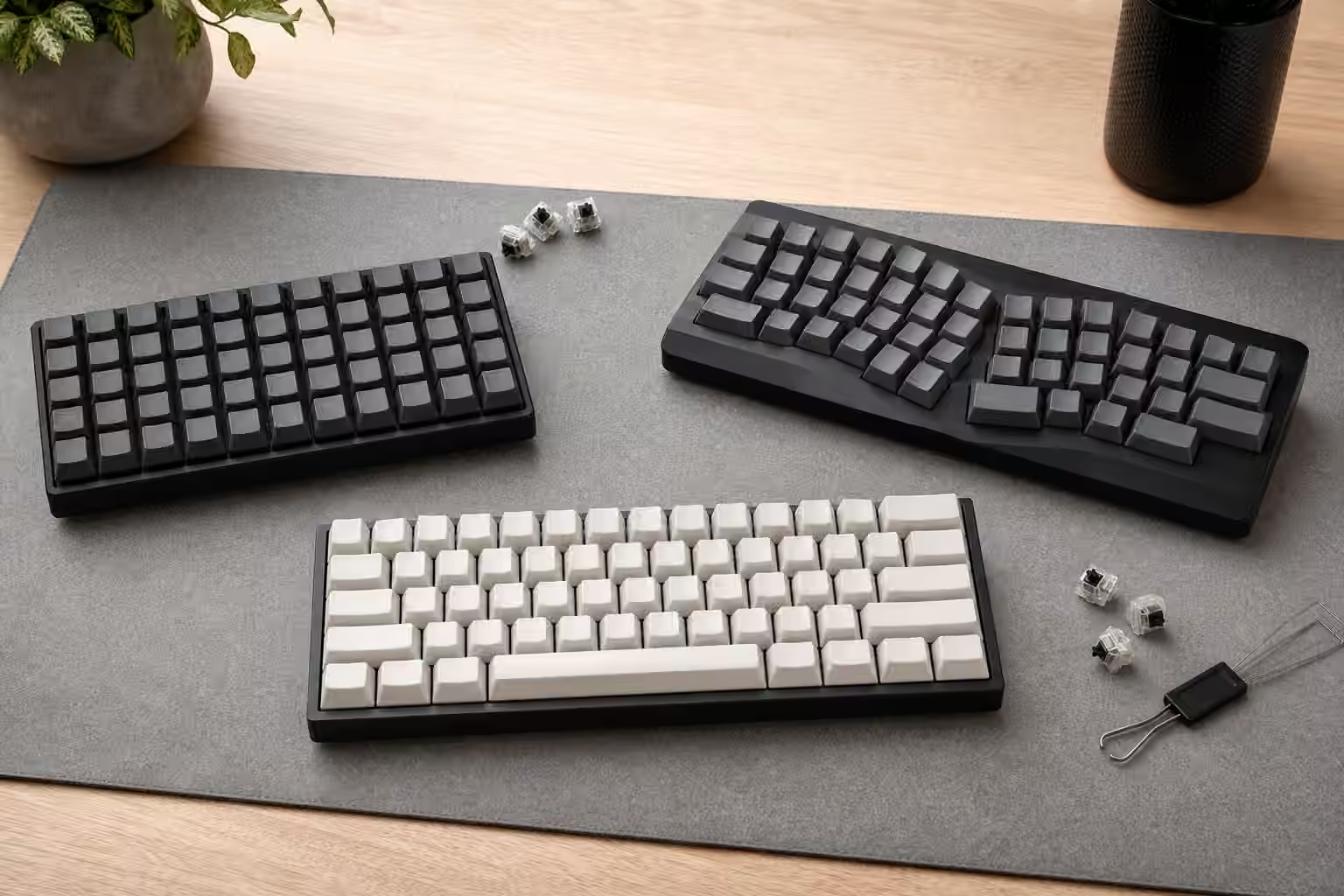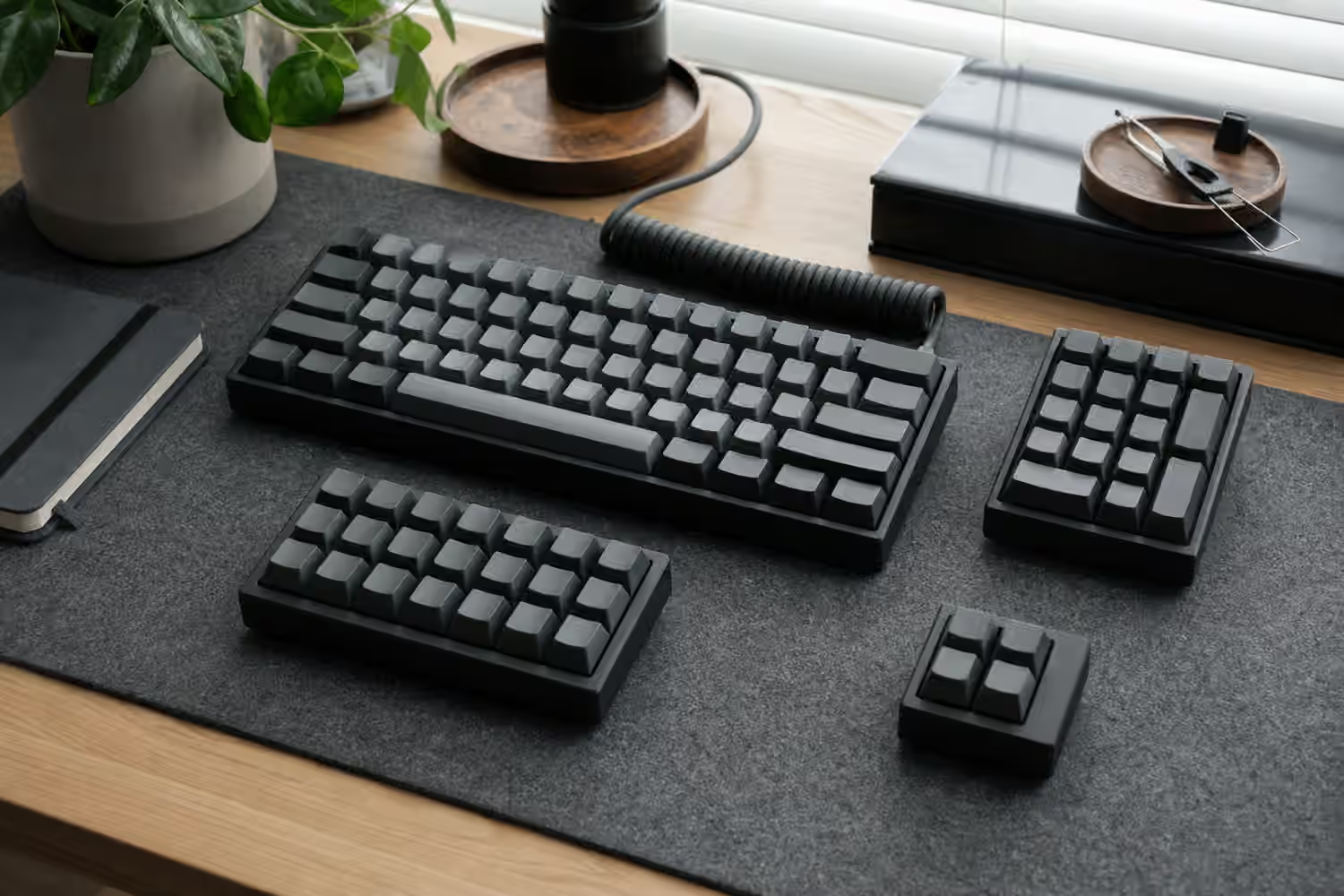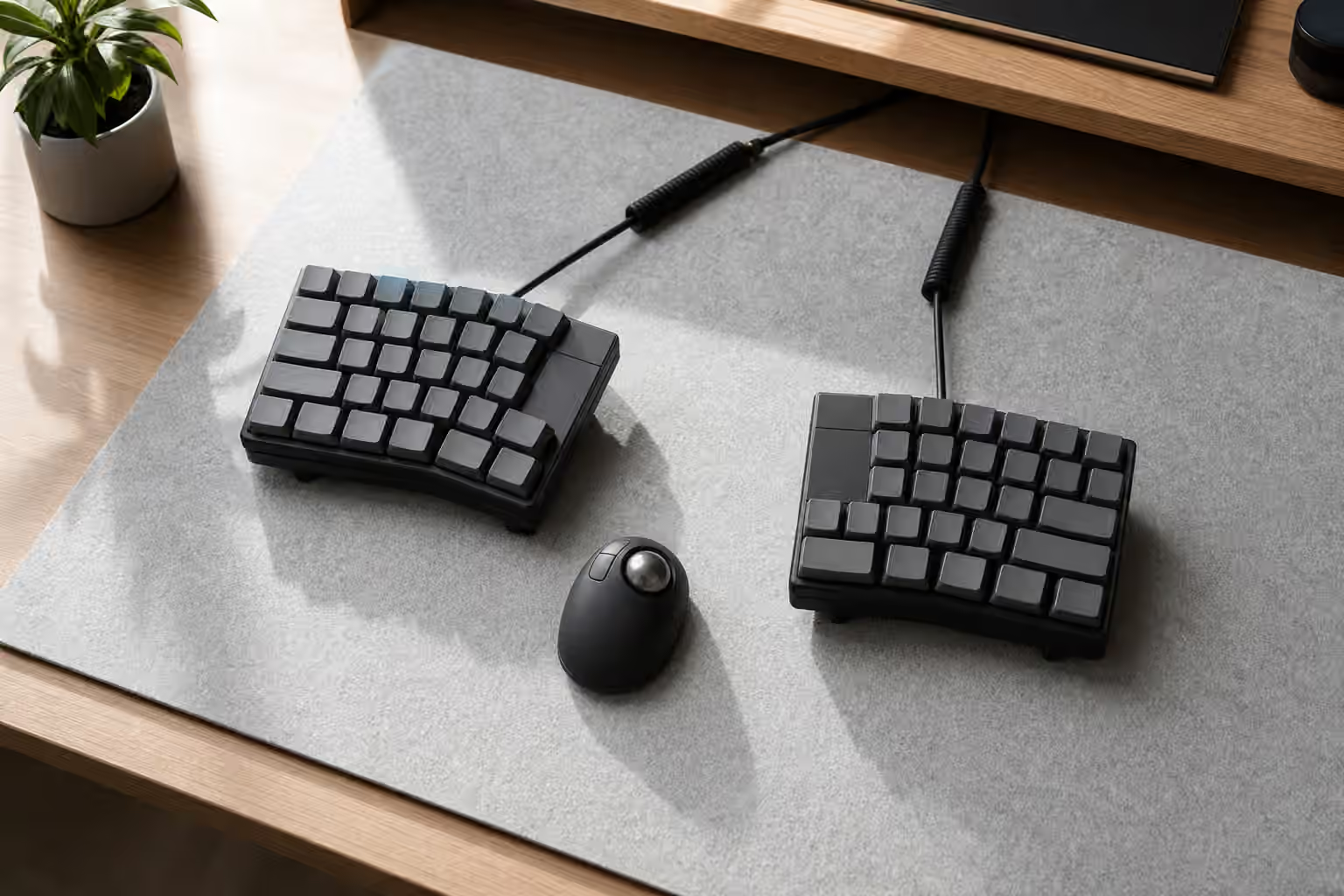

A compact keyboard is not just a smaller keyboard. It is a keyboard that asks you to decide where missing keys should live. On a 60 percent board, the function row, arrows, navigation cluster, and numpad are gone from the surface. On a 40 percent board, even numbers and punctuation may move behind layers. That can feel elegant when the layout matches your hands, and maddening when every shortcut becomes a memory test.
The Keyboard Layout Guide explains the physical sizes, and the QMK and VIA Firmware Guide explains the tools that make remapping possible. This guide sits between those two. It is about designing layers for real days: writing, browsing, coding, editing documents, using spreadsheets, joining calls, and handing the keyboard to someone else without embarrassment. A layer is successful when it disappears into routine.
Start from missing work, not missing keys
The first layer mistake is recreating a full-size keyboard in miniature without asking what you actually use. A compact board does not need to hide every absent key in the most literal place. It needs to make common actions easy and uncommon actions findable. If you never press Scroll Lock, it does not deserve prime real estate. If you use arrows every minute, they should be reachable without finger gymnastics.
Think in tasks. Text editing needs arrows, word movement, Home, End, Backspace, Delete, and sometimes Page Up or Page Down. Coding may add brackets, braces, tilde, pipe, Escape, function keys, and application shortcuts. Spreadsheet work may need a numpad layer more than a media layer. Calls may need mute and volume within reach. Gaming may need a simple base layer with fewer clever hold behaviors. The right layer plan starts with the day, not the diagram.
This is where compact keyboards become personal. A 60 percent board can be easy for someone who writes prose and uses Vim-style navigation, yet irritating for someone who lives in spreadsheets. A 40 percent board can feel natural to a user who enjoys layers and home-row modifiers, while the same board feels hostile to a person who wants visible punctuation. Neither reaction is more serious. The layout is either supporting the work or taxing it.
The function key should be boring
Most compact boards rely on a function key, often labeled Fn, to access a second layer. The best Fn placement is the one you can hold without moving your hand into an awkward shape. On many boards, that means a thumb key near Space, a key near the right thumb, or a remapped Caps Lock if you are comfortable giving it up. A far corner Fn key makes the layer technically available but physically expensive.
Momentary layers are usually the safest starting point. Hold Fn, press another key, release Fn, and you are back to normal typing. Toggle layers can be useful for numpads or gaming layers, but they create mode errors when you forget where you are. If you have ever typed a sentence and produced media commands instead of letters, you have met the cost of a toggle in the wrong place.
Layer keys also need consistency. If Fn plus H, J, K, and L become arrows, do not scatter nearby navigation across unrelated areas unless there is a reason. If Fn plus number row becomes function keys, keep that relationship stable. The hand learns shapes. A layer that feels clever on paper but changes logic every few keys will always demand attention.
Arrows and navigation
Arrows are the compact keyboard argument in miniature. Some users want a board with dedicated arrows because they press them constantly. Others are happy to place arrows under a layer because the fingers do not leave home position. Both choices can be excellent, but a bad arrow layer will poison an otherwise good keyboard.
The common home-row pattern puts left, down, up, and right under H, J, K, and L or a nearby cluster. It works well for people already comfortable with that shape. Another common pattern places arrows under I, J, K, and L, which resembles an inverted T more closely. Some boards put arrows on WASD because gamers already know that cluster. The physical arrangement matters less than whether your hand can hold the layer key and press the arrow cluster without strain.
Navigation keys should live near the arrows. Home and End make sense beside left and right. Page Up and Page Down make sense above and below or on a neighboring pair. Delete should be easy enough to find but not so easy that you press it by accident. If you write and edit text all day, these choices matter more than RGB controls, macros, or novelty layer tricks.
When a keyboard is split or ergonomic, the layer plan may change because thumb keys become more powerful. The Split Keyboards and Ergonomic Layouts guide covers that physical side, but the principle is the same: use the strongest fingers and thumbs for the most frequent layer access.
Symbols, numbers, and punctuation
On 60 percent boards, the number row usually remains visible, so symbols are familiar. On 40 percent boards, the number row often moves to a layer, and punctuation may be rearranged. This is where compact layouts either become graceful or exhausting. Numbers should form a predictable row or numpad shape. Symbols should follow a logic you can explain after a week away from the board.
Programmers often benefit from grouping brackets, braces, parentheses, equals, minus, pipe, backslash, and tilde in a deliberate zone. Writers may care more about quotes, apostrophes, dash, and navigation. Designers and spreadsheet users may prefer a numpad layer with arithmetic operators around it. A single layer cannot be perfect for every job, which is why copying another person’s 40 percent keymap can feel strangely bad even when it is well designed.
Sublegends can help, but they are not required. The Keycap Legends and Manufacturing Methods guide explains why printed layer hints can be useful on some boards and visual clutter on others. If you do use sublegends, keep them honest. A keycap that says one thing while firmware does another is worse than a blank cap because it teaches your eyes to distrust the board.
Media, system controls, and macros
Media controls are useful, but they rarely deserve the most comfortable keys unless you adjust volume constantly. Place mute, volume, play, and screen brightness where they are easy to remember and hard to trigger accidentally. A call mute key should be deliberate. So should sleep, power, or any macro that sends a destructive command.
Macros belong on compact boards when they reduce real repetition. They do not need to be theatrical. A key that types a common email phrase, opens a launcher, triggers a window manager command, or sends a complex application shortcut can be more valuable than a dozen decorative macros. The danger is forgetting what they do. If a macro is important, put it somewhere memorable and document it outside the keyboard until muscle memory forms.
Layer lighting can be useful if your board supports it, but it should not be the only way to know your state. A compact keyboard should remain usable in daylight, with lighting off, or on a different computer. If the layout depends on a color effect to make sense, it may be too modal for daily work.
Avoiding hold-tap overload
Advanced firmware features can put modifiers on home-row keys, turn Space into a layer key when held, or make a key do different things depending on tap timing. These features can be powerful, especially on small boards, but they add timing sensitivity. A layout that feels magical during slow testing may misfire during fast typing.
Start with simple layer access before adding hold-tap behavior everywhere. If you later add home-row modifiers, tune them slowly and pay attention to accidental shortcuts, delayed letters, and rolling keypresses. Not every typist presses keys in clean individual events. Some roll from one key to the next, and firmware timing has to respect that habit.
Gaming is another reason to keep a plain layer available. Games often dislike clever tap-hold behavior because key timing matters. A dedicated gaming layer that disables risky dual-role keys can make a compact board more reliable without changing your main typing layout.
Make the layout learnable
The best compact layouts are built in stages. First, make the base layer comfortable. Then add arrows and navigation. Then add function keys and media. Then handle symbols, numpad behavior, and macros. If you change every layer at once, every mistake feels mysterious. If you change one group at a time, the keyboard teaches you what is working.
Use the keyboard for normal work before declaring the layout finished. Browse, write, edit, rename files, join a call, fill a form, and recover from a typo. The awkward moments are the useful data. If you repeatedly pause for the same key, move it. If you trigger a command by accident, make it less convenient. If a layer key causes thumb tension, relocate it before your hands start avoiding the board.
Desk fit still matters. A compact keyboard can bring the mouse closer and improve reach, which the Keyboard Desk Fit guide covers in more detail. But a smaller board that forces constant awkward chords is not an ergonomic victory. The physical desk gains and the mental layer cost need to balance.
A compact keyboard rewards honesty. Do not choose the smallest board you can tolerate in a product photo. Choose the smallest board whose hidden keys become familiar enough to stop being hidden. When the layer plan is right, the keyboard feels larger than it looks. When it is wrong, even a simple Delete key can feel far away. Build the layout around your actual work, keep the first layers boring, and let clever firmware arrive only after the basics are effortless.